# Graphics
Drawing shapes, images and styles in 2D and 3D
[Reference](index.md)
## Guides
### Drawing in Codea
Codea can draw 2D and 3D graphics.
The `draw()` function is called once per frame to draw the contents of the screen.
The `background(r,g,b,a)` function clears the background with a given color. You typically call this once at the start of `draw()`. When it isn’t called, the contents of the background stay the same as the previous frame.
Draw other elements with functions such as `line()`, `sprite()` and `rect()`.
These functions use the current drawing style, which affects things like fill color, stroke color, and stroke width.
## Try it: an animated circle
This project draws a circle that moves back and forth across the screen. We use
elapsed time to calculate the position of the circle.
#### Animated circle
[Download project](data/downloads/Animated-circle-7b2bdcfcc6cc.zip) — Open in Codea to run this example.
```lua
function setup()
end
function draw()
background(24, 28, 38)
style.fill(100, 220, 200).noStroke()
local x = WIDTH * (0.5 + 0.25 * math.sin(time.elapsed))
ellipse(x, HEIGHT / 2, 80, 80)
end
```
[A mint circle moving horizontally on a dark background](data/media/videos/animated-circle.mp4)
The animated circle example running. Press Run Example above to run it yourself.
## Style
Prefer simple calls such as `fill(...)`, `strokeWidth(...)`, and `fontSize(...)` to set the drawing state:
```lua
fill(255, 0, 0)
stroke(255)
strokeWidth(5)
ellipse(WIDTH/2, HEIGHT/2, 100, 100)
```
These functions need no `style.` prefix. Use the `style` module for additional settings, saving and restoring the drawing state, or chaining several commands together:
```lua
-- Draw a red ellipse with a 5px white stroke
style.push().fill(color.red).stroke(color.white).strokeWidth(5)
ellipse(WIDTH/2, HEIGHT/2, 100, 100)
style.pop()
```
See [Style](#Setting-Drawing-Styles) for the complete reference.
Anywhere a color is used as a parameter, you can use the following forms:
```lua
fill(r, g, b, a) -- separate color components in the range 0-255
fill(r, g, b) -- only red, green, blue color components with alpha assumed to be 255
fill(grey, alpha) -- only greyscale and alpha
fill(grey) -- only grayscale with alpha assumed to be 255
fill(color) -- a color object
```
## Matrix
Use `matrix` to move, rotate, and scale your drawings. Its view and projection matrices control where the camera looks and how a 3D scene appears on screen. You can also use a `camera` to manage these settings.
Matrix commands can be chained too. Use `push()` to save the current matrices and `pop()` to restore them after drawing:
```lua
-- Translate then rotate in one expression
matrix.push().translate(100, 100).rotate(45)
rect(0, 0, 50, 50)
matrix.pop()
```
See [Matrix](Vector.md#Transforming-Drawings) for a complete reference
## 3D Drawing
To draw in 3D, switch from the default 2D orthographic projection to a perspective projection using [`matrix.perspective()`](Vector.md#matrix.perspective). Always wrap 3D drawing in a [`matrix.push()`](Vector.md#matrix.push) / [`matrix.pop()`](Vector.md#matrix.pop) pair so the 2D projection is restored afterwards.
**Important**
With [`matrix.perspective()`](Vector.md#matrix.perspective), the camera sits at the origin and looks toward **+Z**. Objects must have a **positive Z coordinate** to be visible. Use [`matrix.translate()`](Vector.md#matrix.translate) to move objects in front of the camera.
```lua
function draw()
background(20, 20, 30)
-- All 3D drawing goes inside a matrix.push/pop block
matrix.push()
matrix.perspective(60) -- 60° field of view
matrix.translate(0, 0, 5) -- move object 5 units forward (+Z)
matrix.rotate(angle, 0, 1, 0) -- spin around Y axis
myMesh:draw()
matrix.pop()
-- 2D drawing after matrix.pop() uses the default screen projection
text("Hello", WIDTH/2, 40)
end
```
To position the camera elsewhere in the scene, set a custom view matrix using [`matrix.view()`](Vector.md#matrix.view) together with [`mat4.orbit()`](Vector.md#mat4.orbit):
```lua
matrix.push()
matrix.perspective(60)
-- Orbit camera: looking at origin from distance 8, tilted 20° up and 45° around Y
matrix.view(mat4.orbit(vec3(0, 0, 0), 8, 20, 45))
myMesh:draw()
matrix.pop()
```
## Background
`background()` clears the screen each frame with a solid color (or image/shader):
```lua
background(0, 0, 0) -- black
background(40, 40, 50) -- dark blue-grey
background(color.white) -- using a color object
```
See [Drawing Commands](#background) for full documentation
## Vector Drawing
Draw lines and shapes using the current [Style](#Setting-Drawing-Styles) settings:
```lua
-- Lines
style.push().stroke(255, 0, 0).strokeWidth(4)
line(100, 100, 400, 300)
style.pop()
-- Shapes
style.push().fill(0, 128, 255).stroke(255).strokeWidth(2)
rect(WIDTH/2, HEIGHT/2, 200, 100) -- centered rectangle
ellipse(WIDTH/2, HEIGHT/2, 150, 150) -- circle
style.pop()
-- Polygon
style.push().fill(255, 200, 0)
polygon(200,100, 300,200, 250,300, 150,300, 100,200)
style.pop()
```
See [Drawing Commands](#background) for a complete list of vector drawing functions
## Text
Draw text on the screen with `text()`, followed by its horizontal and vertical
position. Put the call in `draw()` so the message appears every frame:
```lua
function draw()
background(30)
text("Hello, Codea!", WIDTH/2, HEIGHT/2)
end
```
The bottom-left corner of the screen is `(0, 0)`. Increase `x` to move text to
the right, or `y` to move it up. `WIDTH/2, HEIGHT/2` is the center of the screen.
**Size, color, and font**
Set these before drawing your text. The following examples belong inside
`draw()` too:
```lua
fontSize(40)
fill(255, 210, 80)
font("Arial-BoldMT")
text("You win! 🎉", WIDTH/2, HEIGHT/2)
```
Use `fontSize` to control the size in points, `fill` to set the color, and `font`
to choose a font face.
**Positioning and multiple lines**
Use `shapeMode` to choose which part of a message sits at the coordinates
you give to `text`. `CORNER` places the lower-left corner there, which is handy
for a score near the edge of the screen:
```lua
fontSize(32)
shapeMode(CORNER)
text("Score: 120", 40, 40)
```
`CENTER` places the center of the whole message at that point:
```lua
shapeMode(CENTER)
text("Level complete!", WIDTH/2, HEIGHT/2)
```
Line alignment is independent of the block anchor. For a centered block with
left-aligned lines:
```lua
shapeMode(CENTER)
textAlign(LEFT)
text("Level complete!\nTap to continue", WIDTH/2, HEIGHT/2)
```
`textAlign` and `style.textAlign` have identical behavior. Alignment and
wrapping calls can be made in any order without changing the block anchor.
Use `\n` to start a new line. For a longer message, pass a width to `text()` to wrap it:
```lua
shapeMode(CORNER)
text("Explore the island and find three hidden keys before sunset.",
40, HEIGHT/2, WIDTH - 80)
```
You can also supply a height to align text within a box. See
[`textAlign()`](#textAlign) for alignment within the box, and [`shapeMode()`](#shapeMode) for positioning the box.
**Measuring text**
Use [`textSize()`](#textSize) when you need to leave room for a label or place another
message below it. Set the font and size before measuring, just as you would before
drawing:
```lua
fontSize(32)
shapeMode(CENTER)
textAlign(CENTER | MIDDLE)
local message = "Score: 120"
local width, height = textSize(message)
text(message, WIDTH/2, HEIGHT/2)
text("Best: 200", WIDTH/2, HEIGHT/2 - height - 12)
```
For wrapped text, pass the same width to `textSize` and `text`.
To align different fonts along the same baseline, use [`font.metrics()`](#font.metrics).
It returns measurements such as ascent, descent, and capital-letter height for
the current font and size. These describe the font rather than a particular
message.
**Making text stand out**
A shadow helps a label remain readable over a busy background:
```lua
fontSize(40)
fill(255)
style.textShadow(color(0, 0, 0, 180), vec2(2, -2), 3)
text("Ready?", WIDTH/2, HEIGHT/2)
```
The color controls its tint and opacity, `offset` moves it relative to the text,
and `radius` controls the blur. A radius of zero gives a sharp shadow.
Use `style.noTextShadow()` to turn the shadow off. To change the appearance of
just one label, surround its settings and drawing calls with `style.push()` and
`style.pop()`. That restores the settings used by the rest of your drawing.
Text settings reset each frame, so keep them inside `draw()`.
**Formatting parts of a message**
Tags let you make individual words bold, italic, or a different color. You must use the atlas text renderer by calling
`style.textRenderer(style.atlas)` before drawing tagged text:
```lua
style.push()
style.textRenderer(style.atlas)
fontSize(32)
text('Find the key to open the red door.',
WIDTH/2, HEIGHT/2)
style.pop()
```
`...` makes a span bold, `...` makes it italic, and
`...` changes its color. Close each tag after the words
it should affect. Atlas text also supports decorations such as underlines:
```lua
style.push()
style.textRenderer(style.atlas)
style.textUnderline(255)
text("Next chapter", WIDTH/2, HEIGHT/2)
style.pop()
```
A decoration’s color enables it; set its alpha to zero to turn it off, for example
`style.textUnderline(255, 0)`.
**Animating letters**
When using atlas text, you can define your own tags for effects such as waving letters. Register the tag
in `setup()`, then use it in the text you draw:
```lua
function setup()
text.style.wave = function(tag, format)
format.callback = function(str, index, letter)
letter.offsetY = math.sin(time.elapsed * 5 + index) * 6
end
end
end
function draw()
background(30)
fontSize(40)
style.textRenderer(style.atlas)
text("Hello!", WIDTH/2, HEIGHT/2)
end
```
The callback adjusts each letter’s position. You can also change its color or
opacity. See [`text.style`](#entry.text.style) for custom tags and [`glyphModifier`](#glyphModifier)
for the per-letter controls.
**Choosing native or atlas text**
Most labels, scores, paragraphs, and emoji can use the default, `style.native`.
Choose `style.atlas` when you want tags, underlines, or animated-letter effects.
Atlas text does not support color emoji, so keep emoji labels on native rendering.
Use `style.textRenderer(style.native)` to switch back. You can mix both in a frame;
`style.push()` and `style.pop()` are useful for keeping each label’s settings
local. Remember that your style and renderer choices apply to `textSize`, so measure and draw with the same
settings.
See [Style](#Setting-Drawing-Styles) for individual text settings and [Drawing Commands](#background) for
drawing, measurement, and custom effects.
## Images and Sprites
Images are loaded with [`image.read()`](#image.read) and drawn with [`sprite()`](#sprite):
```lua
function setup()
img = image.read(asset.builtin.Blocks.Brick)
end
function draw()
background(0)
sprite(img, WIDTH/2, HEIGHT/2, 200, 200)
end
```
## Context
The context module lets you draw into an image instead of the screen, using [`context.push()`](#context.push) and [`context.pop()`](#context.pop):
```lua
local target = image(512, 512)
context.push(target)
background(0)
style.push().fill(255, 0, 0)
ellipse(256, 256, 200, 200)
style.pop()
context.pop()
-- Now draw that image to screen
sprite(target, WIDTH/2, HEIGHT/2)
```
## Meshes
Use a `mesh` to draw 3D objects or custom 2D shapes. Start with a built-in shape or define your own vertices.
**Built-in mesh generators**
```lua
sphereMesh = mesh.sphere(1) -- sphere, radius 1
boxMesh = mesh.box(vec3(1,1,1)) -- box, 1×1×1
cylinderMesh = mesh.cylinder(0.5, 1) -- radius 0.5, height 1
torusMesh = mesh.torus(0.25, 1) -- torus
```
**Drawing a mesh in 3D**
```lua
function setup()
sphereMesh = mesh.sphere(1)
angle = 0
end
function draw()
background(20, 20, 30)
angle = angle + 0.5
matrix.push()
matrix.perspective(60)
matrix.translate(0, 0, 4)
matrix.rotate(angle, 0, 1, 0)
sphereMesh:draw()
matrix.pop()
end
```
**Building a mesh from vertices**
Set [`mesh.vertices`](Shaders.md#mesh.vertices) to draw a triangle for each group of three vertices. This also creates the indices that connect them. Use [`mesh.positions`](Shaders.md#mesh.positions) when changing an existing shape while keeping its triangle connections:
```lua
-- Each group of three vertices forms a triangle
m = mesh()
m.vertices = { vec3(0,0,0), vec3(1,0,0), vec3(0.5,1,0) } -- one triangle
m.colors = { color(255,0,0), color(0,255,0), color(0,0,255) }
m:draw()
-- Use positions only to deform an existing mesh (preserves its index buffer)
sph = mesh.sphere(1)
-- modify sph.positions each frame to animate without breaking sphere indices
```
**Complete example: Rotating RGB Cube**
*Example*
```lua
-- RGB Cube
-- A rotating cube with RGB vertex colors
function setup()
viewer.mode = FULLSCREEN
-- Build a cube mesh with 8 corners
cubeMesh = mesh()
local s = 0.5
local v = {
vec3(-s,-s,-s), vec3( s,-s,-s), vec3( s, s,-s), vec3(-s, s,-s),
vec3(-s,-s, s), vec3( s,-s, s), vec3( s, s, s), vec3(-s, s, s),
}
-- Map each corner's position to an RGB color
local function posToColor(p)
return color(
math.floor((p.x + s) / (2*s) * 255),
math.floor((p.y + s) / (2*s) * 255),
math.floor((p.z + s) / (2*s) * 255))
end
-- 6 faces × 2 triangles, wound for correct front-face culling
local faces = {
{v[5],v[6],v[7]}, {v[5],v[7],v[8]}, -- Front (+z)
{v[2],v[1],v[4]}, {v[2],v[4],v[3]}, -- Back (-z)
{v[1],v[5],v[8]}, {v[1],v[8],v[4]}, -- Left (-x)
{v[6],v[2],v[3]}, {v[6],v[3],v[7]}, -- Right (+x)
{v[8],v[7],v[3]}, {v[8],v[3],v[4]}, -- Top (+y)
{v[1],v[2],v[6]}, {v[1],v[6],v[5]}, -- Bottom (-y)
}
local verts, cols = {}, {}
for _, tri in ipairs(faces) do
for _, p in ipairs(tri) do
table.insert(verts, p)
table.insert(cols, posToColor(p))
end
end
-- Use 'vertices' (not 'positions') so indices are set automatically
cubeMesh.vertices = verts
cubeMesh.colors = cols
angleX, angleY = 0, 0
end
function draw()
background(20, 20, 30)
angleX = angleX + 0.4
angleY = angleY + 0.6
-- Set up perspective projection.
-- With matrix.perspective() the camera is at the origin looking
-- toward +Z, so objects must have a positive Z to be visible.
matrix.push()
matrix.perspective(60)
matrix.translate(0, 0, 3) -- place cube 3 units in front
matrix.rotate(angleX, 1, 0, 0)
matrix.rotate(angleY, 0, 1, 0)
cubeMesh:draw()
matrix.pop()
end
```
## Shaders and Materials
Both shaders and materials can be applied to a mesh to control how it is rendered. See [Shaders](Shaders.md#Writing-Shaders), [Materials](Shaders.md#material) and [Shaders and Materials](Shaders.md#Shaders-and-Materials) for details.
## Lighting
Codea supports dynamic lighting via [Lights](Scenes.md#Lighting-a-Scene). Generated meshes (`mesh.sphere()`, `mesh.box()`, etc.) use a lit material by default, so without any lights they render black. There are two ways to make them visible:
**Option 1: Unlit material with a color** (no light needed):
```lua
sph = mesh.sphere(1)
sph.material = material.unlit()
sph.material.color = color(100, 180, 255)
```
**Option 2: Lit material with a directional light** (produces 3D shading):
```lua
function setup()
sph = mesh.sphere(1)
sph.material = material.lit()
sph.material.color = color(100, 180, 255)
dirLight = light.directional(vec3(1, -1, 1))
dirLight.intensity = 2
end
function draw()
background(20, 20, 30)
matrix.push()
matrix.perspective(60)
light.push(dirLight)
matrix.translate(0, 0, 4)
sph:draw()
light.pop()
matrix.pop()
end
```
**Note**
When drawing meshes directly, only `light.directional()` is supported. Point and spot lights are not supported for this kind of drawing.
*Full sphere example*
```lua
-- 3D Sphere with directional light
function setup()
viewer.mode = FULLSCREEN
sphereMesh = mesh.sphere(1)
sphereMesh.material = material.lit()
sphereMesh.material.color = color(100, 180, 255)
dirLight = light.directional(vec3(1, -1, 1))
dirLight.intensity = 2
angle = 0
end
function draw()
background(20, 20, 30)
angle = angle + 0.5
matrix.push()
matrix.perspective(60)
light.push(dirLight)
matrix.translate(0, 0, 4)
matrix.rotate(angle, 0, 1, 0)
sphereMesh:draw()
light.pop()
matrix.pop()
end
```
## Drawing shapes and changing style
Each row draws a shape with its default style, a colored fill, and a white outline. `style.reset()` restores the defaults. Try changing the last four `rect()` arguments to round each corner differently.
#### Drawing shapes and changing style
[Download project](data/downloads/Drawing-shapes-and-changing-style-87d589963595.zip) — Open in Codea to run this example.
```lua
-- Learn to Codea
-- Drawn in Code
function setup()
end
-- Codea calls the draw() function every frame to redraw the screen
-- This could be as much as 60 or 120 times per second, or less if
-- you demand too much from the CPU/GPU
-- Put drawing commands in here to draw the various doodads you want
function draw()
-- Some background on the background(r,g,b,a) command
-- This command clears the screen with the specified color. The parameters
-- represent the amount of each primary color component to use (i.e. red, green, blue)
-- When called all previous things drawn on the screen will be cleared with the color used
background(25, 25, 25)
-- 2D Vector Drawing
-- For based 2D drawing jobs we can use the following commands:
-- ellipse(x, y, w, h)
-- rect(x, y, w, h)
-- rect(x, y, w, h, radius)
-- line(x1, y1, x2, y2)
-- polygon(p1, p2, p3, p4...)
-- shape(x, y, closed, func)
-- ellipse() draws an ellipse (no kidding?) at the specified x, y location
-- The x, y values are euclidian coordinates (i.e. horizontal and vertical) with the
-- origin starting at 0, 0 (bottom left of the screen)
-- Lets draw one:
ellipse(WIDTH/2 - 120, HEIGHT/2 + 120, 100, 100)
-- You may have noticed the all-caps constant WIDTH and HEIGHT
-- These handily give us the current resolution of the screen in sort-of pixels
-- (this is a retina screen thing, don't worry for now)
-- By using WIDTH/2 and HEIGHT/2 I get the exact center of the screen regardless of how
-- big it happens to be
-- Style
-- To control the things like colors and strokes for shapes we use Codea's style commands
-- You can just do:
fill(255, 0, 0) -- make shapes fill with red
ellipse(WIDTH/2, HEIGHT/2 + 120, 100, 100)
-- Make shapes have a white stroke with 5 pixel width
-- We can also chain together multiple style commands
style.stroke(255).strokeWidth(5)
ellipse(WIDTH/2 + 120, HEIGHT/2 + 120, 100, 100)
-- We can also reset the style to it's default state
style.reset().rectMode(CENTER)
-- We can also draw a rectangle
-- rectMode(CENTER) makes these positions the centers of the rectangles
rect(WIDTH/2 - 120, HEIGHT/2, 100, 100)
fill(255, 0, 0)
rect(WIDTH/2, HEIGHT/2, 100, 100)
style.stroke(255).strokeWidth(5)
rect(WIDTH/2 + 120, HEIGHT/2, 100, 100)
style.reset().rectMode(CENTER)
-- Rounded rectangles are possible too!
-- Extra 1 parameter to round all corners
rect(WIDTH/2 - 120, HEIGHT/2 - 120, 100, 100, 5)
fill(255, 0, 0)
rect(WIDTH/2, HEIGHT/2 - 120, 100, 100, 10)
-- Extra 4 parameters to vary how much each corner is rounded
style.stroke(255).strokeWidth(5)
rect(WIDTH/2 + 120, HEIGHT/2 - 120, 100, 100, 5, 10, 5, 15)
end
function touched(touch)
end
```
## Building an orbit with nested transforms
Satellites orbit a moving center while moons orbit each satellite. Each `matrix.push()` is paired with `matrix.pop()`, so moving one moon does not move the next satellite. Try changing the orbit radii or the number of moons.
#### Building an orbit with nested transforms
[Download project](data/downloads/Nested-orbits-128628168884.zip) — Open in Codea to run this example.
```lua
-- Learn to Codea
-- The Matrix
function setup()
end
function draw()
background(25, 25, 25)
local r = time.elapsed * 15
-- The matrix module gives you control over positioning of drawing commands
-- By changing the current matrix, this changes where drawing occurs
-- The easiest way to think of this is that the current matrix represents
-- the origin of the screen
-- matrix.translate(WIDTH/2, HEIGHT/2) - move drawing to the middle of the screen
-- You can also rotate and scale drawing
-- Transforming the matrix combines with any previous transformation
-- i.e. matrix.translate(WIDTH/2, HEIGHT/2).translate(100, 100)
-- Drawing will now originate 100 pixels up and to the right of the middle of the screen
-- You can also use matrix.push()/pop() to save and load the current matrix transform
-- similar to how style.push()/pop() is used
-- matrix.transform2d()/transform3d() allows you to apply full transformations in one
-- command for convenience
-- If you need to clear all current transformations you can use matrix.reset()
-- You can also create a mat4 (4x4 matrix) type and use this with matrix.get()/set()
-- There are additional commands for adjusting view and projection matrices
-- matrix.ortho() - use orthographic (2D) projection
-- matrix.perspective() - use perspective (3D) projection
-- matrix.projection(m) - use a custom projection matrix
-- matrix.view(m) - use a custom view matrix
-- Move the origin to the center of the screen and rotate over time
matrix.transform2d(WIDTH/2, HEIGHT/2, 1, 1, r)
ellipse(0, 0, 50)
-- Draw 6 satellites that orbit and rotate the center
for i = 1, 6 do
-- Accumulate rotations
matrix.rotate(360/6)
-- Use additional push and transform to create a recursive hierarchy
matrix.push().transform2d(math.min(WIDTH, HEIGHT) * 0.28, 0, 1, 1, r * 1.25)
ellipse(0, 0, 25)
-- Additional mini satellites that orbit the current origin
for i = 1, 6 do
matrix.rotate(360/6)
matrix.push().transform2d(math.min(WIDTH, HEIGHT) * 0.075, 0)
ellipse(0, 0, 15)
matrix.pop()
end
-- Pop here is crucial to let the next satellite transform relative to its parent
matrix.pop()
end
end
function touched(touch)
end
```
## Comparing blend modes
Choose a blend mode or change either color in **Controls** to see how overlapping colors combine. Drawing order matters: the second circle blends over the first. The images below the circles show how blending works with pictures.
#### Comparing blend modes
[Download project](data/downloads/Comparing-blend-modes-1434009f57a9.zip) — Open in Codea to run this example.
```lua
function setup()
parameter.color("ColorA", color(225, 138, 130))
parameter.color("ColorB", color(169, 255, 129))
blendModes =
{
"NORMAL",
"ADDITIVE",
"MULTIPLY",
"SCREEN",
"LIGHTEN",
"LINEAR_BURN",
"PREMULTIPLIED",
"DISABLED"
}
parameter.option("Blend", blendModes)
alpha1 = image.read(asset.Alpha1)
alpha2 = image.read(asset.Alpha2)
end
function draw()
background(64)
matrix.push().translate(WIDTH/2, HEIGHT/2 + 130)
style.reset()
style.blend(_G[blendModes[Blend]])
fill(ColorA)
ellipse(-50, 0, 160)
fill(ColorB)
ellipse(50, 0, 160)
matrix.translate(0, -220)
style.reset().blendFunc(EQUATION_MAX)
sprite(alpha1, -50, 0, 160)
sprite(alpha2, 50, 0, 160)
matrix.pop()
end
function touched(touch)
end
```
## Saving and restoring styles
These swatches share three saved styles: foreground, background, and label. `style.get()` saves the settings and `style.set()` restores them. Change one saved style to update every swatch.
#### Saving and restoring styles
[Download project](data/downloads/Reusable-swatch-styles-d5e877067d11.zip) — Open in Codea to run this example.
```lua
function setup()
-- Here are some built-in colors that come with codea!
colors =
{
color.black,
color.white,
color.clear,
color.cyan,
color.gray,
color.red,
color.green,
color.blue,
color.magenta,
color.yellow
}
swatchFG = style.reset().rectMode(CENTER).stroke(255).strokeWidth(3).get()
swatchBG = style.reset().rectMode(CENTER).noStroke().fill(90).get()
label = style.reset().fontSize(14).textAlign(CENTER).fill(200).get()
end
local colorNames = {"black", "white", "clear", "cyan", "gray", "red", "green", "blue", "magenta", "yellow"}
local SWATCH_SIZE = 100
local SWATCH_SPACING = 15
function swatch(x, y, ...)
style.set(swatchBG)
rect(x + 5, y - 5, SWATCH_SIZE, SWATCH_SIZE, 10)
style.set(swatchFG).fill(...)
rect(x, y, SWATCH_SIZE, SWATCH_SIZE, 10)
end
function draw()
background(32)
local columns = math.max(1, math.floor(WIDTH / (SWATCH_SIZE + SWATCH_SPACING)))
local rows = math.ceil(#colors / columns)
for k, v in ipairs(colors) do
local column, row = (k - 1) % columns, math.floor((k - 1) / columns)
matrix.push().translate((column + 0.5) * WIDTH / columns,
HEIGHT/2 + (rows/2 - row - 0.5) * 150)
swatch(0, 0, v)
style.set(label)
text(colorNames[k], 0, -SWATCH_SIZE/2 - 20)
matrix.pop()
end
end
function touched(touch)
end
```
## Interpolating vertex colors
Three vertices define a triangle, with a color at each corner. Codea blends these colors across its surface. Change its size in **Controls** and watch it rotate.
#### Interpolating vertex colors
[Download project](data/downloads/A-Rotating-Colored-Triangle-eb55f362d7f3.zip) — Open in Codea to run this example.
```lua
-- Mesh Example
-- Author: John Millard
function setup()
print("Hello Mesh!")
-- Here we create a mesh, just a single triangle
parameter.integer("triSize", 10, 300, 100)
-- Create a new empty mesh
triMesh = mesh()
-- This is an array of colours we'll assign to the triMesh vertices
triCol = { color(255, 0, 0, 255),
color(255, 255, 0, 255),
color(0, 100, 255, 255)}
-- Assign colors to the mesh, there must be the same number of colours as vertices
triMesh.colors = triCol
end
-- This function gets called once every frame
function draw()
-- Dark background color
background(20, 20, 40)
-- Save the current transform (translation, rotation and scale)
matrix.push()
-- Translate coordinates to the middle of the screen
matrix.translate(WIDTH/2, HEIGHT/2)
-- Rotate the transform at 100 degrees per second
matrix.rotate(time.elapsed*100)
-- Construct equilateral triangle points, this could be any 3 points
local top = vec2(math.cos(2*math.pi/6), math.sin(2*math.pi/6))
top = top * triSize
local left = vec2(math.cos(6*math.pi/6), math.sin(6*math.pi/6))
left = left * triSize
local right = vec2(math.cos(10*math.pi/6), math.sin(10*math.pi/6))
right = right * triSize
-- Set points on mesh, every 3 points constructs a new triangle
triMesh.vertices = { top,
left,
right }
-- Draw the mesh that we setup
triMesh:draw()
-- Restore the previous transform
-- This is useful if you need to position multiple objects differently
matrix.pop()
end
```
## Turning a polygon into triangles
Tap around an outline without crossing its edges. `mesh.triangulate()` divides the polygon into triangles so it can be drawn as a filled shape.
#### Turning a polygon into triangles
[Download project](data/downloads/Build-a-Polygon-from-Touches-8715d6260214.zip) — Open in Codea to run this example.
```lua
-- Mesh 2 - Triangulate Example
-- Author: John Millard
function setup()
print("Hello Triangulate!")
msh = mesh()
points = {}
colors = {}
end
function updateMesh()
if #points >= 3 then
msh.positions = points
msh.colors = colors
msh.indices = mesh.triangulate(points)
end
end
-- This function gets called once every frame
function draw()
-- Dark background color
background(20, 20, 40)
msh:draw()
style.noStroke().fill(255)
for k, v in pairs(points) do
ellipse(v, 10)
end
end
function touched(touch)
if touch.state == ENDED and touch.tapCount == 1 then
table.insert(points, touch.pos)
table.insert(colors, color(touch.x / WIDTH * 255, touch.y / HEIGHT * 255, 128))
updateMesh()
end
end
```
### Using Assets
Assets are files such as images, sounds, shaders, and 3D models. Drawing a sprite
starts with choosing an image. Type `sprite()` and tap its highlighted
parentheses to open the asset picker, then choose an image. Codea inserts an
*asset key*, such as `asset.builtin.Planet_Cute.Character_Boy`.
An asset key identifies a file or folder; it is not the image data itself.
Codea can check named assets and offer autocomplete while you write code.
Start typing `asset.` to explore the available files and folders.
```lua
function draw()
background(40)
sprite(asset.builtin.Planet_Cute.Character_Boy, WIDTH/2, HEIGHT/2, 120)
end
```
## Asset locations
- `asset.MyImage` refers to a file in your project.
- `asset.documents.MyImage` refers to a file in Codea’s Documents folder.
- `asset.icloud.MyImage` refers to a file in Codea’s iCloud documents.
- `asset.builtin.Planet_Cute.Character_Boy` refers to a built-in asset pack.
- `asset.current` refers to the project whose code is executing, including
when that code belongs to a dependency. Use it for a library’s own resources.
- `asset.ExternalFolderName.MyImage` refers to a folder reference added with
the asset picker.
## Loading and drawing
Pass an image asset directly to `sprite()`, or load it once with `image.read()`
and keep the resulting image. The latter is useful when you also want to inspect
or edit its pixels. See `sound.read()` and `mesh.read()` for other asset types.
```lua
function setup()
character = image.read(asset.builtin.Planet_Cute.Character_Boy)
end
function draw()
background(40)
tint(255, 200, 200)
sprite(character, WIDTH/2, HEIGHT/2, 120)
style.noTint()
end
```
## Paths and filenames
Use the concatenation operator `..` to build a path dynamically or identify a
file that does not exist yet. For example, save an image with
`image.save(asset.documents .. "Picture.png", character)`.
Square brackets preserve the exact filename, including spaces, punctuation, and
extensions: `asset.documents["My File (2).png"]`. Unlike a named asset key,
this lookup cannot be checked or autocompleted ahead of time.
When two files have the same name but different extensions, autocomplete uses an
extension suffix to distinguish them. For example, `asset.MyObject_png` and
`asset.MyObject_obj` identify `MyObject.png` and `MyObject.obj`.
## Listing assets and tracking changes
Use `#` on an asset library to count its entries, and `.all` to obtain an
array of asset keys. This works for the project, Documents, or a nested folder.
```lua
print("Project files:", #asset)
for i, key in ipairs(asset.all) do
print(i, key.path)
end
```
Assign a function to a folder’s `updated` property to be notified when its
contents change. This applies to folders, not individual files.
```lua
asset.updated = function(library)
print("Project files changed:", #library)
end
```
See [Assets](Storage.md#Assets-in-Codea) and [File Operations](Storage.md#Working-with-Files-in-Codea) for more about storing and managing
project resources.
## Background
### background(red, green, blue, alpha)
```lua
background(red, green, blue, alpha)
```
Clears the current context with solid color, can also be used to set image backgrounds when combined with `context.push()`
clear the background with a color, cube image or shader
#### Parameters
- **red** (number): The red component of the color (0-255)
- **green** (number): The green component of the color (0-255)
- **blue** (number): The blue component of the color (0-255)
- **alpha** (number): The alpha component of the color (0-255)
### background(color)
```lua
background(color)
```
Clears the current context with solid color, can also be used to set image backgrounds when combined with `context.push()`
clear the background with a color, cube image or shader
#### Parameters
- **color** (color): The color to set the background to
### background(cubeImage, mipLevel)
```lua
background(cubeImage, mipLevel)
```
Clears the current background with the contents of a cube image, using the current camera settings to define eye direction
clear the background with a color, cube image or shader
#### Parameters
- **cubeImage** (image): The image to clear the background with
- **mipLevel** (number, optional, default: 0): The mip level of the image to use, useful for displaying pre-blurred image mips, such as those calculated using image.generateIrradiance()
### background(shader)
```lua
background(shader)
```
Clears the current background using a custom shader
clear the background with a color, cube image or shader
#### Parameters
- **shader** (shader): The shader to use when clearing the background, should be a shader that is compatible with sprite rendering (i.e. uses the same vertex attributes)
#### Example
```lua
function setup()
-- Create a custom background shader
skybox = shader{
name = "Skybox",
properties =
{
{"environment", "texture"},
{"mipLevel", "float", 0}
},
pass =
{
cullFace = "none", -- backgrounds don't need culling
depthWrite = false, -- no need to write to depth buffer
depthFunc = "always", -- no need for depth testing
blendMode = "disabled", -- no need for blending
renderQueue = "background", -- render behind everything else
vertex =
[[
#version 430
#include
layout (location = POSITION) in vec3 a_position;
layout (location = 0) out vec3 v_eyeDirection;
void main()
{
// vertex layout is a quad between -1 and 1, use this to unproject and calculate eye direction from view/perspective matrix
vec3 unprojected = (u_invProj * vec4(a_position, 1)).xyz;
v_eyeDirection = mat3(u_invView) * unprojected;
gl_Position = vec4(a_position.xy, 1, 1);
}
]],
fragment =
[[
#version 430
#include
layout (location = 0) in vec3 v_eyeDirection;
out vec4 fragColor;
uniform samplerCube environment;
uniform float mipLevel;
void main()
{
vec3 rayDir = normalize(v_eyeDirection);
rayDir = vec3(rayDir.x, rayDir.y, rayDir.z);
vec3 col = texture(environment, rayDir, mipLevel).rgb;
fragColor = vec4(col, 1.0);
}
]],
}
}
local hdr = image.cube(image.read(asset.builtin.hdr.Norway_Forest))
skybox.environment = hdr:generateIrradiance()
-- Test mip level adjustment
parameter.number("MipLevel", 0, 10, 0, function(mip)
skybox.mipLevel = mip
end)
parameter.vec2("Rotation", vec2(0,0))
end
function draw()
matrix.perspective()
local v = mat4.orbit(vec3(0, 0, 0), 1, Rotation:unpack())
matrix.view(v)
background(skybox)
end
```
## Vector Graphics
### line(x1, y1, x2, y2)
```lua
line(x1, y1, x2, y2)
```
Draws 2D line from the start point (x1, y1) to the end point (x2, y2) based on the current style:
- *Color* with [`style.stroke()`](#style.stroke)
- *Width* with [`style.strokeWidth()`](#style.strokeWidth)
- *End Caps* with [`style.lineCap()`](#style.lineCap)
- [`SQUARE`](#entry.SQUARE)
- [`PROJECT`](#entry.PROJECT)
- [`ROUND`](#entry.ROUND)
draw a line between two points
#### Parameters
- **x1** (number): the x coordinate of the start point
- **y1** (number): the y coordinate of the start point
- **x2** (number): the x coordinate of the end point
- **y2** (number): the y coordinate of the end point

[`SQUARE`](#entry.SQUARE)
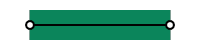
[`PROJECT`](#entry.PROJECT)

[`ROUND`](#entry.ROUND)
### line(x, y)
```lua
line(x, y)
```
Adds a straight segment from the last point to (x, y), when called inside `shape()`
draw a line between two points
#### Parameters
- **x** (number): x coordinate in points, transformed by the current matrix.
- **y** (number): y coordinate in points, transformed by the current matrix.
### polyline(x1, y1, x2, y2, ...)
```lua
polyline(x1, y1, x2, y2, ...)
```
Draws a continuous 2D line with an arbitrary number of points (x1, y1, etc…) based on the current style
- *Color* with [`style.stroke()`](#style.stroke)
- *Width* with [`style.strokeWidth()`](#style.strokeWidth)
- *End Caps* with [`style.lineCap()`](#style.lineCap)
- *Line Joins* with [`style.lineJoin()`](#style.lineJoin)
- [`ROUND`](#entry.ROUND)
- [`MITER`](#entry.MITER)
- [`BEVEL`](#entry.BEVEL)
draw a continuous polyline
#### Parameters
- **x1** (number): X coordinate of the start point.
- **y1** (number): Y coordinate of the start point.
- **x2** (number): X coordinate of the end point.
- **y2** (number): Y coordinate of the end point.
- **...** (number): Additional x, y coordinate pairs, in drawing order.
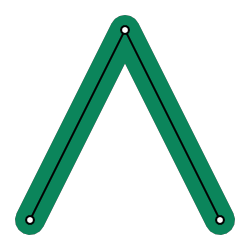
[`ROUND`](#entry.ROUND)
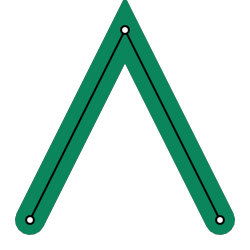
[`MITER`](#entry.MITER)
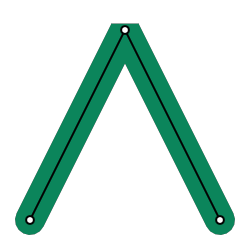
[`BEVEL`](#entry.BEVEL)
### polygon(x1, y1, x2, y2, ...)
```lua
polygon(x1, y1, x2, y2, ...)
```
Draws a closed 2D polygon with an arbitrary number of points based on the current style
draw a closed polygon
#### Parameters
- **x1** (number): X coordinate of the start point.
- **y1** (number): Y coordinate of the start point.
- **x2** (number): X coordinate of the end point.
- **y2** (number): Y coordinate of the end point.
- **...** (number): Additional x, y coordinate pairs, in drawing order.
### bezier(x1, y1, cx1, cy1, cx2, cy2, x2, y2)
```lua
bezier(x1, y1, cx1, cy1, cx2, cy2, x2, y2)
```
Draw a quadratic bezier curve using four points based on the current style
draw a cubic bezier curve or curve segment
#### Parameters
- **x1** (number): X coordinate of the start point.
- **y1** (number): Y coordinate of the start point.
- **cx1** (number): Coordinate of the corresponding Bézier control point, in points.
- **cy1** (number): Coordinate of the corresponding Bézier control point, in points.
- **cx2** (number): Coordinate of the corresponding Bézier control point, in points.
- **cy2** (number): Coordinate of the corresponding Bézier control point, in points.
- **x2** (number): X coordinate of the end point.
- **y2** (number): Y coordinate of the end point.
### bezier(cx1, cy1, cx2, cy2, x2, y2)
```lua
bezier(cx1, cy1, cx2, cy2, x2, y2)
```
Adds a curved segment from the last point to (x2, y2), when called inside `shape()`
draw a cubic bezier curve or curve segment
#### Parameters
- **cx1** (number): Coordinate of the corresponding Bézier control point, in points.
- **cy1** (number): Coordinate of the corresponding Bézier control point, in points.
- **cx2** (number): Coordinate of the corresponding Bézier control point, in points.
- **cy2** (number): Coordinate of the corresponding Bézier control point, in points.
- **x2** (number): X coordinate of the end point.
- **y2** (number): Y coordinate of the end point.
### shape(x, y, closed, func)
```lua
shape(x, y, closed, func)
```
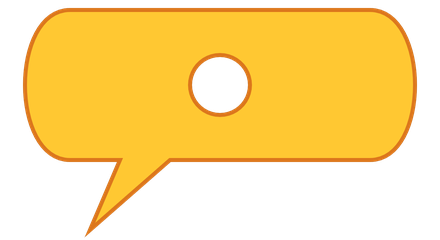
Draws a shape from a path that starts at (x, y) and is built by the drawing commands called inside `func`. The shape is filled and outlined using the current style
Inside `func`, use `line(x, y)` and `bezier(cx1, cy1, cx2, cy2, x2, y2)` to add segments from the last point. Commands such as `rect()` and `ellipse()` add separate outlines to the shape. An outline inside another one cuts a hole in it
draw a shape from lines and curves
#### Parameters
- **x** (number): the x coordinate of the first point
- **y** (number): the y coordinate of the first point
- **closed** (boolean, optional, default: true): whether to join the last point back to the first and fill the shape. An open shape is only outlined
- **func** (function): a function that builds the shape
#### A speech bubble with a hole
```lua
function draw()
background(40, 40, 50)
style.fill(255, 200, 50).stroke(220, 120, 30).strokeWidth(4)
shape(200, 300, function()
-- The tail
line(250, 300)
line(220, 230)
line(300, 300)
line(500, 300)
bezier(560, 300, 560, 450, 500, 450)
line(200, 450)
bezier(140, 450, 140, 300, 200, 300)
-- This outline cuts a hole in the bubble
ellipse(350, 375, 60, 60)
end)
end
```
### arc(x, y, radius, startAngle, endAngle, dir)
```lua
arc(x, y, radius, startAngle, endAngle, dir)
```
Draws a 2D arc with a given origin, radius and start, end angles + direction
draw a 2D arc
#### Parameters
- **x** (number): x coordinate of the arc origin
- **y** (number): y coordinate of the arc origin
- **radius** (number): the radius arc
- **startAngle** (number): the start angle of the arc (in degrees)
- **endAngle** (number): the end angle of the arc (in degrees)
- **dir** (integer): the direction of the arc, 1 or clockwise, -1 for anti-clockwise
### ellipse(x, y, w, h)
```lua
ellipse(x, y, w, h)
```
Draw an ellipse with a given origin point and width / height (or radius)
draw a circle or oval
#### Parameters
- **x** (number): x coordinate in points, transformed by the current matrix.
- **y** (number): y coordinate in points, transformed by the current matrix.
- **w** (number): Width or height in points; interpreted using the current shape mode.
- **h** (number): Width or height in points; interpreted using the current shape mode.
### rect(x, y, w, h, radius)
```lua
rect(x, y, w, h, radius)
```
Draws a rectangle with a given origin point and width / height, origin and sizing behaviour depends on [`style.shapeMode()`](#style.shapeMode)
Optional parameter `radius` specified the corner radius
draw a rectangle with optional rounded corners
#### Parameters
- **x** (number): the x coordinate of the rectangle
- **y** (number): the y coordinate of the rectangle
- **w** (number): the width of the rectangle
- **h** (number): the height of the rectangle
- **radius** (number, optional, default: 0): the radius of the rounded corners
### rect(x, y, w, h, r1, r2, r3, r4)
```lua
rect(x, y, w, h, r1, r2, r3, r4)
```
Draws a rectangle with a given origin point and width / height, origin and sizing behaviour depends on [`style.shapeMode()`](#style.shapeMode)
The corner radius of each corner can be set independently using the additional parameters r1, r2, r3 and r4
draw a rectangle with optional rounded corners
#### Parameters
- **x** (number): the x coordinate of the rectangle
- **y** (number): the y coordinate of the rectangle
- **w** (number): the width of the rectangle
- **h** (number): the height of the rectangle
- **r1** (number): the radius of the top-left corner
- **r2** (number): the radius of the top-right corner
- **r3** (number): the radius of the bottom-right corner
- **r4** (number): the radius of the bottom-left corner
## Sprites
### sprite(image, x, y, w, h)
```lua
sprite(image, x, y, w, h)
```
Draws an image, an image asset, or a slice from a sprite atlas. Pass an asset
key such as `asset.builtin.Planet_Cute.Character_Boy` to load an image,
or pass an `image` you have already created or loaded with `image.read()`.
An `image.slice` draws a selected region of an image.
By default, `x` and `y` locate the center of the sprite. Change the origin
with `style.spriteMode()`. Without a size, the sprite uses its natural
dimensions. Supply only `w` to preserve its aspect ratio, or both `w` and
`h` to stretch it to a particular size. Coordinates and sizes are in points,
transformed by the current matrix.
Use `tint(...)` to multiply the sprite’s colors and alpha, and
`style.noTint()` to restore its original colors. Call `sprite()` in
`draw()` to display the image each frame.
draw an image or shader
#### Parameters
- **image** (image or asset.key or image.slice): Image, asset key identifying an image, or image slice to draw.
- **x** (number): Horizontal position, interpreted using the current sprite mode.
- **y** (number): Vertical position, interpreted using the current sprite mode.
- **w** (number, optional): Optional width in points; defaults to the image’s natural width.
- **h** (number, optional): Optional height in points; when omitted, preserves the aspect ratio.
#### Example
```lua
function draw()
background(40)
style.spriteMode(CENTER).noTint()
sprite(asset.builtin.Planet_Cute.Character_Boy, WIDTH/2, HEIGHT/2, 120)
end
```
### sprite(shader, x, y, w, h)
```lua
sprite(shader, x, y, w, h)
```
Draws a rectangle with a custom shader or material. Supply both dimensions:
there is no source image from which to infer its size. The shader must support
sprite vertex attributes. Positioning follows `style.spriteMode()` and the
current matrix, just as it does for an image sprite.
draw an image or shader
#### Parameters
- **shader** (shader or material): Shader or material used to render the rectangle.
- **x** (number): Horizontal position in points.
- **y** (number): Vertical position in points.
- **w** (number): Width of the rectangle in points.
- **h** (number): Height of the rectangle in points.
## Text
### text(str, x, y, w, h)
```lua
text(str, x, y, w, h)
```
Draws text at `x, y`. Call it inside `draw()` to show the text every frame.
Set [`fontSize()`](#fontSize), [`font()`](#font), and [`fill()`](#fill)
before drawing to choose its size, font, and color. Emoji work by default.
Use `\n` for a new line, or supply `w` to wrap a longer message. Add `h`
to align the text within a box using [`textAlign()`](#textAlign). Position the whole
block with [`shapeMode()`](#shapeMode): `CENTER` centers it at `x, y` and
`CORNER` places its lower-left corner there. `CORNERS` interprets the last
pair as the opposite corner; `RADIUS` interprets it as half-dimensions.
Without explicit bounds, the block uses its measured size. The box controls
layout; it does not clip text that extends beyond it. Numbers and other values
are converted to strings.
See [Drawing](#Drawing-in-Codea) for positioning, wrapping, shadows, and tagged-text
examples. For advanced per-letter effects, see `text.style`.
draw text at a location
#### Parameters
- **str** (string): The text to draw.
- **x** (number): The x coordinate of the text.
- **y** (number): The y coordinate of the text.
- **w** (number, optional): Optional width in points, half-width in RADIUS mode, or opposite x coordinate in CORNERS mode. When omitted, uses the measured width and textWrapWidth.
- **h** (number, optional): Optional height in points, half-height in RADIUS mode, or opposite y coordinate in CORNERS mode. When omitted, uses the measured height.
#### Example
```lua
fontSize(32)
fill(255)
text("Score: 120", WIDTH/2, HEIGHT/2)
```
### textSize(str, width)
```lua
textSize(str, width)
```
Measures text in points so you can reserve space for it or position nearby
content. Set the same font, size, and other text settings that you will use
when drawing. Supply `width` when measuring wrapped text.
The returned size is always full width and height in points, independent of
`shapeMode` and paragraph alignment. If you use
`textWrapWidth`, that width applies when no explicit width is supplied.
get the width and height of the drawn string
#### Parameters
- **str** (string): the text to query
- **width** (number, optional): the width of the textbox
#### Returns
- **number**: The width and height of the text
- **number**:
### textRenderer(renderer)
```lua
textRenderer(renderer)
```
Alias of [`style.textRenderer()`](#style.textRenderer). Use `style.native` for everyday text
and emoji, or `style.atlas` for tags, decorations, and animated letters.
Set this before drawing and measuring text.
select native or atlas text rendering
#### Parameters
- **renderer** (enum): style.native or style.atlas.
#### Returns
- **style**: The style table, for chaining.
### textRenderer()
```lua
textRenderer()
```
Alias of [`style.textRenderer()`](#style.textRenderer). Gets the current text renderer.
get the current text renderer
#### Returns
- **enum**: style.native or style.atlas.
### textLineHeight()
```lua
textLineHeight()
```
Gets the atlas font line height. This currently uses atlas metrics even when
`style.native` is selected. For native measurements, use `textSize()`.
get the atlas font line height
#### Returns
- **number**: The line height, or zero if the atlas font cannot be loaded.
### textBounds(str, x, y)
```lua
textBounds(str, x, y)
```
Reserved API. Currently returns four zeros; bounds calculation is not implemented.
Use `textSize()` for working width and height measurements.
reserved text bounds query
#### Parameters
- **str** (string): The text to query.
- **x** (number): The draw x coordinate.
- **y** (number): The draw y coordinate.
#### Returns
- **number**: Four zeros (not implemented).
- **number**:
- **number**:
- **number**:
### glyphBounds(str, x, y, index)
```lua
glyphBounds(str, x, y, index)
```
Reserved API. Currently returns four zeros; glyph bounds calculation is not implemented.
reserved glyph bounds query
#### Parameters
- **str** (string): The text to query.
- **x** (number): The draw x coordinate.
- **y** (number): The draw y coordinate.
- **index** (integer): The one-based glyph index.
#### Returns
- **number**: Four zeros (not implemented).
- **number**:
- **number**:
- **number**:
### text.style
```lua
text.style
```
Defines reusable formatting and animation effects for tagged text. Register
your tags in `setup()`. For example, give warning messages a consistent color:
Then use the tag when drawing:
Each handler receives `tag`, `format`, and an optional `index` argument.
Read custom tag attributes through `textTag`, and change the span’s
appearance through `textFormatting`. `index` is the zero-based
text index. Handlers are registered by assignment; the table does not return
previously registered handlers.
To animate individual letters, assign a function to `format.callback`.
It receives the text, a one-based glyph index, and a `glyphModifier`.
Adjust the modifier’s position, color, or opacity to make letters wave, shake,
or appear gradually. See [Drawing](#Drawing-in-Codea) for a short wave example, or
explore the combined effects below.
register custom rich-text tag handlers
#### Example
```lua
text.style.warning = function(tag, format)
format.fillColor = color(255, 180, 40)
format.fontName = "Helvetica-Bold"
end
```
#### Example
```lua
style.textRenderer(style.atlas)
text("Low fuel!", WIDTH/2, HEIGHT/2)
```
#### Example: waving, shaking, and revealing text
```lua
function setup()
text.style.wave = function(tag, format)
local height = tag:number("height", 2)
format.fillColor = color.red
format.fontName = "Helvetica-BoldOblique"
format.callback = function(str, i, mod)
mod.offsetY = mod.offsetY + math.sin(time.elapsed*5 + i) * height
end
end
text.style.shake = function(tag, format)
local intensity = tag:number("intensity", 2)
format.callback = function(str, i, mod)
local r1 = (math.random() * 0.5 - 0.5) * intensity
local r2 = (math.random() * 0.5 - 0.5) * intensity
mod.offsetX = mod.offsetX + r1
mod.offsetY = mod.offsetY + r2
end
end
text.style.appear = function(tag, format)
local t = timer * tag:number("speed", 5)
format.callback = function(str, i, mod)
local a = math.min(math.max(t - i, 0.0), 1.0)
local len = str:len()
mod.offsetY = 5 * math.cos(a * math.pi/2)
mod.alpha = a * 255
end
end
parameter.text("str", "This line will appear and shake and wave and might wrap at some point...")
--parameter.text("str", "Here is a line of text that might wrap at some point...")
parameter.integer("fontSize", 5, 100, 24)
parameter.number("WaveHeight", 0, 10, 5)
parameter.option("TextAlignH", {"LEFT", "CENTER", "RIGHT"}, 2)
parameter.option("TextAlignV", {"BOTTOM", "MIDDLE", "TOP"}, 2)
parameter.action("Reset", function() timer = 0 end)
alignH = {LEFT, CENTER, RIGHT}
alignV = {BOTTOM, MIDDLE, TOP}
timer = 0
--[[
scn = scene.default3d()
local rig = scn.camera:add(camera.rigs.orbit)
rig.distance = 50
rig.angles.y = -45
rig.angles.y = -75
scene.main = scn--]]
end
function draw()
local boxWidth = 400
local boxHeight = 200
background(128)
--matrix.ortho()
-- Setup the text drawing style
font("Arial")
style.fill(color.cyan).fontSize(fontSize)
matrix.transform3d(WIDTH/2 - 50, HEIGHT/2 - boxHeight/2, 0, 2, 2, 2, 0, 0, 0)
--matrix.transform3d(0, 0, 0, 0.1, 0.1, 0.1, 0, 0, 0)
fill(255)
style.stroke(0).strokeWidth(5).textRenderer(style.atlas)
--noStroke()
shapeMode(CORNER)
textAlign(alignH[TextAlignH] | alignV[TextAlignV])
local so = (CurrentTouch.pos - vec2(WIDTH/2, HEIGHT/2)) * 0.1
style.textShadow(color(0, 0, 0, 128), so, 10)
-- Cache some locals for performance
local len = str:len()
local cps = 10
local t = timer * 5
local r1, r2 = string.find(str, "text")
text(str, 0, 0, boxWidth, boxHeight)
timer = timer + time.delta
-- Draw the text's bounding box and origin
style.noFill().stroke(color.yellow).strokeWidth(2)
rect(0, 0, boxWidth, boxHeight)
ellipse(0, 0, 10)
end
```
### textTag
```lua
textTag
```
A tag supplied to a rich-text callback. Created by the renderer; no constructor.
get a numeric tag attribute
### textTag:number(name, default)
```lua
textTag:number(name, default)
```
Reads a numeric XML attribute, returning the default if it is missing or invalid.
get a numeric tag attribute
#### Parameters
- **name** (string): The attribute name.
- **default** (number): The fallback value.
#### Returns
- **number**: The attribute value or fallback.
### textFormatting
```lua
textFormatting
```
Mutable formatting supplied to a rich-text tag callback. Created by the renderer;
no constructor. Color values use `color` objects.
get or set textAlign
### textFormatting.textAlign
```lua
textFormatting.textAlign
```
Text alignment flags.
get or set textAlign
### textFormatting.fontSize
```lua
textFormatting.fontSize
```
Font size in points.
get or set fontSize
### textFormatting.fontName
```lua
textFormatting.fontName
```
Font name.
get or set fontName
### textFormatting.fillColor
```lua
textFormatting.fillColor
```
Text fill color.
get or set fillColor
### textFormatting.strokeColor
```lua
textFormatting.strokeColor
```
Text outline color.
get or set strokeColor
### textFormatting.strokeWidth
```lua
textFormatting.strokeWidth
```
Text outline width.
get or set strokeWidth
### textFormatting.textOverline
```lua
textFormatting.textOverline
```
Overline color.
A nonzero alpha enables this decoration; zero disables it. The default is transparent.
get or set textOverline
### textFormatting.textUnderline
```lua
textFormatting.textUnderline
```
Underline color.
A nonzero alpha enables this decoration; zero disables it. The default is transparent.
get or set textUnderline
### textFormatting.textStrikeThrough
```lua
textFormatting.textStrikeThrough
```
Strikethrough color.
A nonzero alpha enables this decoration; zero disables it. The default is transparent.
get or set textStrikeThrough
### textFormatting.textBackground
```lua
textFormatting.textBackground
```
Background color.
A nonzero alpha enables this decoration; zero disables it. The default is transparent.
get or set textBackground
### textFormatting:textShadow(color, offset, radius)
```lua
textFormatting:textShadow(color, offset, radius)
```
Adds a shadow to this tagged span.
Set the color, offset, and radius together. A transparent color disables the
shadow. The default is no shadow. Shadows do not change text measurements.
set text shadow color, offset, and blur radius
#### Parameters
- **color** (color): The shadow color, including opacity.
- **offset** (vec2): The shadow displacement in points. Positive x moves right; positive y moves up.
- **radius** (number): The blur radius in points. Zero gives a sharp shadow; must be non-negative.
#### Returns
- **textFormatting**: The formatting object, for chaining.
#### Example
```lua
format:textShadow(color(0, 0, 0, 160), vec2(2, -2), 4)
```
### textFormatting:textShadow()
```lua
textFormatting:textShadow()
```
Gets the shadow color, offset, and radius. A disabled shadow returns a
transparent color while retaining its offset and radius.
get text shadow color, offset, and blur radius
#### Returns
- **color**: The color, offset, and radius.
- **vec2**:
- **number**:
### textFormatting:noTextShadow()
```lua
textFormatting:noTextShadow()
```
Disables the shadow by setting its opacity to zero.
disable the text shadow
#### Returns
- **textFormatting**: The formatting object, for chaining.
### textFormatting.callback
```lua
textFormatting.callback
```
Glyph callback: `function(str, index, mod)`. The index is one-based and `mod` is a glyphModifier. Used only by atlas rich text.
get or set callback
### glyphModifier
```lua
glyphModifier
```
Mutable glyph data supplied to a formatting callback. Created by the renderer;
no constructor. Changes affect the current glyph in atlas rich text.
get or set glyph offsetX
### glyphModifier.offsetX
```lua
glyphModifier.offsetX
```
Horizontal glyph offset in pixels.
get or set glyph offsetX
### glyphModifier.offsetY
```lua
glyphModifier.offsetY
```
Vertical glyph offset in pixels.
get or set glyph offsetY
### glyphModifier.alpha
```lua
glyphModifier.alpha
```
Sets glyph opacity from 0 to 255. The getter currently returns 255, not the edited opacity.
get or set glyph alpha
### glyphModifier.color
```lua
glyphModifier.color
```
Sets glyph color. The getter currently returns a default color, not the edited glyph color.
get or set glyph color
## Gizmos
### gizmos
### gizmos.line(x1, y1, z1, x2, y2, z2)
```lua
gizmos.line(x1, y1, z1, x2, y2, z2)
```
Draws a 3D antialiased line for debugging scene geometry or building editing tools.
draw a line between two points
#### Parameters
- **x1** (number): X coordinate of the start point.
- **y1** (number): Y coordinate of the start point.
- **z1** (number): Z coordinate of the start point.
- **x2** (number): X coordinate of the end point.
- **y2** (number): Y coordinate of the end point.
- **z2** (number): Z coordinate of the end point.
## Color Space
### colorspace(type)
```lua
colorspace(type)
```
Changes the color space used for drawing images and sprites
set the drawing color space
#### Parameters
- **type** (integer): Either GAMMA or LINEAR
## Contexts
### context.push(image, layer, mip)
```lua
context.push(image, layer, mip)
```
Pushes an `image` to the context, causing subsequent drawing operations to be applied to said image until `context.pop()` is called
push an image onto the drawing context
#### Parameters
- **image** (image): The image to push
- **layer** (integer, optional, default: 0): The layer of image to draw to
- **mip** (integer, optional, default: 0): The mip of the image to draw to
### context.pop()
```lua
context.pop()
```
Pops the current image from the context if one exists, subsequent drawing operations are again applied to the main context (i.e. the display)
pop the current image from the drawing context
## Procedural Noise
### noise(x, y, z)
```lua
noise(x, y, z)
```
Samples smooth Perlin noise. Nearby coordinates produce nearby values,
useful for terrain, organic motion, and textures. Omitted coordinates are
zero. Scale the input to control how quickly values vary; use `math.random`
when independent random samples are wanted instead.
sample smooth Perlin noise
#### Parameters
- **x** (number): First noise coordinate.
- **y** (number, optional): Optional second coordinate, default zero.
- **z** (number, optional): Optional third coordinate, default zero.
#### Returns
- **number**: Noise value at the supplied coordinates.
#### Example
```lua
function draw()
background(30)
local height = noise(time.elapsed * 0.25) * 80
fill(255)
ellipse(WIDTH / 2, HEIGHT / 2 + height, 50)
end
```
## Style
### Setting Drawing Styles
Use the simple functions below to set colors, outlines, and text styles for drawing. These are first-class Codea APIs and need no `style.` prefix. Use the `style` module when chaining commands or working with additional drawing settings.
### fill(color)
```lua
fill(color)
```
Sets the color used to fill shapes and draw text. Call with no arguments to get the current red, green, blue, and alpha components.
set the fill color
#### Parameters
- **color** (color or number): A color object or grayscale value. Also accepts fill(r, g, b[, a]) and fill(gray, alpha). Components range from 0 to 255; omitted alpha is 255.
### noFill()
```lua
noFill()
```
Disables shape filling, leaving only the outline. Call `fill(...)` to enable filling again.
disable shape filling
### stroke(color)
```lua
stroke(color)
```
Sets the outline color for shapes and text. Call with no arguments to get the current red, green, blue, and alpha components. Use `strokeWidth(...)` to set the outline thickness.
set the stroke color
#### Parameters
- **color** (color or number): A color object or grayscale value. Also accepts stroke(r, g, b[, a]) and stroke(gray, alpha). Components range from 0 to 255; omitted alpha is 255.
### noStroke()
```lua
noStroke()
```
Sets the stroke width to zero, disabling outlines. Call `strokeWidth(...)` with a positive width to enable them again.
disable outlines
### tint(color)
```lua
tint(color)
```
Multiplies sprite colors and alpha by this color. Use `tint(255)` to restore the original colors. Call with no arguments to get the current red, green, blue, and alpha components.
set the sprite tint
#### Parameters
- **color** (color or number): A color object or grayscale value. Also accepts tint(r, g, b[, a]) and tint(gray, alpha). Components range from 0 to 255; omitted alpha is 255.
### strokeWidth(width)
```lua
strokeWidth(width)
```
Sets the outline thickness in drawing units. Zero disables outlines. Call with no arguments to get the current width.
set the outline thickness
#### Parameters
- **width** (number): Outline thickness; zero disables strokes.
### lineCap(mode)
```lua
lineCap(mode)
```
Sets the end caps used by lines, polylines, and shapes. Call with no arguments to get the current mode.
set line end caps
#### Parameters
- **mode** (integer): ROUND, SQUARE, or PROJECT.
### lineJoin(mode)
```lua
lineJoin(mode)
```
Sets how connected line segments join in polylines, polygons, and shapes. Call with no arguments to get the current mode.
set line joins
#### Parameters
- **mode** (integer): ROUND, MITER, or BEVEL.
### shapeMode(mode)
```lua
shapeMode(mode)
```
Sets the drawing mode for rectangles, ellipses, sprites, and text blocks. Text lines are aligned inside the block using `textAlign`; alignment never moves the block. Text defaults to `CENTER`. Calling this setter updates all four drawing modes together. With no arguments, it returns the rectangle mode.
For text with explicit bounds, `CORNER` uses a lower-left corner and dimensions,
`CENTER` uses a center and dimensions, `CORNERS` uses opposite corners, and
`RADIUS` uses a center and half-dimensions. Without explicit bounds, text uses
its measured size: `CORNER` and `CORNERS` anchor at the lower-left;
`CENTER` and `RADIUS` anchor at the center. `textWrapWidth` limits wrapping
without changing the anchor. `textSize` always returns full dimensions.
set the drawing origin for shapes and text
#### Parameters
- **mode** (integer): CENTER uses a center and width/height; CORNER uses a lower-left corner and width/height; CORNERS uses opposite corners; RADIUS uses a center and radii.
### font(name)
```lua
font(name)
```
Chooses a system font for text. Select a font face such as `Arial-BoldMT` for bold text. Call with no arguments to get the current name. The same `font` table also provides `font.metrics()`.
choose the font
#### Parameters
- **name** (string): System font name, such as Helvetica or Arial-BoldMT.
### fontSize(size)
```lua
fontSize(size)
```
Sets the text size in points. The default is 17. Call with no arguments to get the current size.
set the text size
#### Parameters
- **size** (number): Font size in points.
### textAlign(align)
```lua
textAlign(align)
```
Aligns lines within the text block, identically to `style.textAlign`. Use `shapeMode()` to position the whole block. Combine `LEFT`, `CENTER`, or `RIGHT` with `TOP`, `MIDDLE`, or `BOTTOM` using bitwise OR to align text inside an explicit box. Horizontal-only alignment starts at the top of the box. Without explicit bounds, the block uses its measured size. Call with no arguments to get the current flags. Alignment does not change block positioning or wrapping.
align lines of text
#### Parameters
- **align** (integer): LEFT, CENTER, or RIGHT for horizontal alignment. In an explicit text box, combine with TOP, MIDDLE, or BOTTOM using bitwise OR.
### textWrapWidth(width)
```lua
textWrapWidth(width)
```
Sets the wrapping width used by `text` and `textSize` unless an explicit width is supplied. Call with no arguments to get the current width.
set the text wrapping width
#### Parameters
- **width** (number): Wrapping width in points. Zero disables wrapping; negative values are clamped to zero.
### Text Style
Set the font, size, and alignment before calling `text()`. Use
`style.fill()` for text color. For a step-by-step introduction, see the
text examples in [Drawing](#Drawing-in-Codea).
### Color Write Masks
Used by shaders to control which color components are written to color buffers (i.e. images and the main context)
### Face Culling
Used by shaders / meshes to control which triangles are culled (based on winding order)
### Depth Comparisons
Used by shaders to control depth rejection for opaque and translucent fragments
## General
### style.push()
```lua
style.push()
```
Push the current style onto the stack
push the current style onto the stack
#### Returns
- **style**: The style table, for chaining.
### style.push(style)
```lua
style.push(style)
```
Push a specific style onto the stack
push a style onto the stack
#### Parameters
- **style** (table): Style snapshot returned by style.get().
#### Returns
- **style**: The style table, for chaining.
### style.pop()
```lua
style.pop()
```
Pop the current style from the stack, restoring the previous style
pop the current style from the stack
#### Returns
- **style**: The style table, for chaining.
### style.reset()
```lua
style.reset()
```
Reset the current style to defaults. Use this to restore the default style
reset the style to defaults
#### Returns
- **style**: The style table, for chaining.
### style.get()
```lua
style.get()
```
Capture separate styles for the foreground, shadow, and label, then restore each before drawing. Changing a saved style updates every swatch that uses it.
Gets the current style as a graphicsStyle object, allowing styles to be saved and restored arbitrarily
get the current style
#### Reusable swatch styles
[Download project](data/downloads/Reusable-swatch-styles-d5e877067d11.zip) — Open in Codea to run this example.
```lua
function setup()
-- Here are some built-in colors that come with codea!
colors =
{
color.black,
color.white,
color.clear,
color.cyan,
color.gray,
color.red,
color.green,
color.blue,
color.magenta,
color.yellow
}
swatchFG = style.reset().rectMode(CENTER).stroke(255).strokeWidth(3).get()
swatchBG = style.reset().rectMode(CENTER).noStroke().fill(90).get()
label = style.reset().fontSize(14).textAlign(CENTER).fill(200).get()
end
local colorNames = {"black", "white", "clear", "cyan", "gray", "red", "green", "blue", "magenta", "yellow"}
local SWATCH_SIZE = 100
local SWATCH_SPACING = 15
function swatch(x, y, ...)
style.set(swatchBG)
rect(x + 5, y - 5, SWATCH_SIZE, SWATCH_SIZE, 10)
style.set(swatchFG).fill(...)
rect(x, y, SWATCH_SIZE, SWATCH_SIZE, 10)
end
function draw()
background(32)
local columns = math.max(1, math.floor(WIDTH / (SWATCH_SIZE + SWATCH_SPACING)))
local rows = math.ceil(#colors / columns)
for k, v in ipairs(colors) do
local column, row = (k - 1) % columns, math.floor((k - 1) / columns)
matrix.push().translate((column + 0.5) * WIDTH / columns,
HEIGHT/2 + (rows/2 - row - 0.5) * 150)
swatch(0, 0, v)
style.set(label)
text(colorNames[k], 0, -SWATCH_SIZE/2 - 20)
matrix.pop()
end
end
function touched(touch)
end
```
### style.set(style)
```lua
style.set(style)
```
Sets the current style from a graphicsStyle object
set the current style
#### Parameters
- **style** (table): Style snapshot returned by style.get().
#### Returns
- **style**: The style table, for chaining.
### style.fill(color)
```lua
style.fill(color)
```
Sets the fill color for use in vector drawing operations
set the fill color
#### Parameters
- **color** (color or number): Color object or grayscale value from 0 to 255. RGB and RGBA numeric forms are also accepted.
#### Returns
- **style**: The style table, for chaining.
### style.fill()
```lua
style.fill()
```
Gets the current fill color for use in vector drawing operations
get the fill color
### style.noFill()
```lua
style.noFill()
```
Disables fill
clear the fill color
#### Returns
- **style**: The style table, for chaining.
### style.stroke(color)
```lua
style.stroke(color)
```
Sets the stroke color to the specified color, or a grayscale value
set the stroke color
#### Parameters
- **color** (color or number): The color to set the stroke to, or a grayscale value
#### Returns
- **style**: The style table, for chaining.
### style.stroke(gray, alpha)
```lua
style.stroke(gray, alpha)
```
Sets the stroke color to the specified grayscale value and alpha
set the stroke color
#### Parameters
- **gray** (number): The grayscale value to set the stroke to
- **alpha** (number): The alpha value to set the stroke to
#### Returns
- **style**: The style table, for chaining.
### style.stroke(red, green, blue)
```lua
style.stroke(red, green, blue)
```
Sets the stroke color to the specified red, green, and blue values
set the stroke color
#### Parameters
- **red** (number): The red value to set the stroke to
- **green** (number): The green value to set the stroke to
- **blue** (number): The blue value to set the stroke to
#### Returns
- **style**: The style table, for chaining.
### style.stroke(red, green, blue, alpha)
```lua
style.stroke(red, green, blue, alpha)
```
Sets the stroke color to the specified red, green, blue, and alpha values
set the stroke color
#### Parameters
- **red** (number): The red value to set the stroke to
- **green** (number): The green value to set the stroke to
- **blue** (number): The blue value to set the stroke to
- **alpha** (number): The alpha value to set the stroke to
#### Returns
- **style**: The style table, for chaining.
### style.stroke()
```lua
style.stroke()
```
Gets the current stroke color for use in vector drawing operations
get the stroke color
### style.noStroke()
```lua
style.noStroke()
```
Disables stroke
clear the stroke color
#### Returns
- **style**: The style table, for chaining.
### style.tint(color)
```lua
style.tint(color)
```
Sets the tint color for use with [`sprite()`](#sprite) and [`mesh.draw()`](Shaders.md#mesh:draw)
set the tint color for images drawn with sprite()
#### Parameters
- **color** (color or number): Color object or grayscale value from 0 to 255. RGB and RGBA numeric forms are also accepted.
#### Returns
- **style**: The style table, for chaining.
### style.tint()
```lua
style.tint()
```
Gets the current tint color
get the tint color
### style.pixelScaling(scale)
```lua
style.pixelScaling(scale)
```
Sets/gets the scale of a sprite when rendering
set the pixel scaling for sprite()
#### Parameters
- **scale** (number): the scaling factor of the sprite image
#### Returns
- **style**: The style table, for chaining.
### style.strokeWidth(width)
```lua
style.strokeWidth(width)
```
Sets the stroke width for use in vector drawing operations
set the width of outlines
#### Parameters
- **width** (number): Stroke width in points.
#### Returns
- **style**: The style table, for chaining.
### style.strokeWidth()
```lua
style.strokeWidth()
```
Gets the current stroke width
get the current outline width
### style.lineCap(mode)
```lua
style.lineCap(mode)
```
Sets the current line cap mode, used by `line`, `polyline` and `shape`
- `ROUND`
- `SQUARE`
- `PROJECT`
set the cap style of line()
#### Parameters
- **mode** (enum): ROUND, SQUARE, or PROJECT.
#### Returns
- **style**: The style table, for chaining.
### style.lineCap()
```lua
style.lineCap()
```
Gets the current line cap mode
get the current line cap style
### style.lineJoin(mode)
```lua
style.lineJoin(mode)
```
Sets the current line join mode, used by `polyline`, `polygon` and `shape` when joining multiple line segments
- `ROUND`
- `MITER`
- `BEVEL`
set the join style of polyline()
#### Parameters
- **mode** (enum): ROUND, MITER, or BEVEL.
#### Returns
- **style**: The style table, for chaining.
### style.lineJoin()
```lua
style.lineJoin()
```
Gets the current line join mode
get the current line join style
### style.shapeMode(mode)
```lua
style.shapeMode(mode)
```
Sets the current shape mode, used by `rect`, `ellipse`, `sprite`, and `text()`. This also sets the text block anchor. Use `textAlign()` to align lines within that block.
For text with explicit bounds, `CORNER` uses a lower-left corner and dimensions,
`CENTER` uses a center and dimensions, `CORNERS` uses opposite corners, and
`RADIUS` uses a center and half-dimensions. Without explicit bounds, text uses
its measured size: `CORNER` and `CORNERS` anchor at the lower-left;
`CENTER` and `RADIUS` anchor at the center. `textWrapWidth` limits wrapping
without changing the anchor. `textSize` always returns full dimensions.
- `CENTER` - Draw shapes from the center and size using width/height
- `CORNERS` - Draw shapes by specifying the two opposite corners
- `CORNER` - Draw shapes by specifying the bottom left corner and then width/height
- `RADIUS` - Draw shapes by specifying center and radius
set the drawing origin for shapes and text
#### Parameters
- **mode** (enum): CENTER, CORNERS, CORNER, or RADIUS.
#### Returns
- **style**: The style table, for chaining.
### style.shapeMode()
```lua
style.shapeMode()
```
Gets the current shape mode
get the drawing origin for rect() and ellipse()
## Constants - Shape Mode
### CORNER
```lua
CORNER
```
corner rect mode constant
### CORNERS
```lua
CORNERS
```
corners rect mode constant
### CENTER
```lua
CENTER
```
center mode constant
### RADIUS
```lua
RADIUS
```
radius mode constant
### style.sortOrder(order)
```lua
style.sortOrder(order)
```
set the sort order for drawing
#### Parameters
- **order** (integer): Draw sorting order; used when depth-based sorting is enabled.
#### Returns
- **style**: The style table, for chaining.
### style.depth(enabled)
```lua
style.depth(enabled)
```
Sets whether immediate drawing uses depth testing. Defaults to `false`.
Inside an entity’s `draw()` callback, enable this to let sprites and text (both native and atlas renderers) be hidden by scene geometry. They test the scene’s depth buffer without writing to it, so transparent parts of a sprite or glyph do not hide later drawing. With depth disabled, these calls draw over scene geometry. Sprite components retain their built-in depth testing; mesh materials control their own depth behavior.
Outside scenes, enabled shapes, sprites, text and meshes using the default 2D shader both test and write depth. A drawing target with a depth buffer is required. Depth testing is disabled with `drawOrder.ordered`, including the default 2D scene configuration; use `drawOrder.distance` for scene depth testing.
Sprite and text calls retain their drawing order after scene geometry. This does not sort intersecting translucent objects. Each entity draw callback inherits the current style and restores it on return, so enabling depth in one callback does not enable it for other entities.
enable depth testing for 2D drawing
#### Parameters
- **enabled** (boolean): whether 2D drawing uses depth testing
#### Returns
- **style**: The style table, for chaining.
### style.depth()
```lua
style.depth()
```
Gets whether 2D drawing uses depth testing
get whether 2D drawing uses depth testing
## Functions
### style.blend(mode)
```lua
style.blend(mode)
```
Sets the current blend mode to one of the available presets. Blending composites pixels onto the current drawing context based on source and destination color and alpha values
The default mode is `NORMAL` which applies standard alpha blended transparency with the following equation:
`DISABLED` can be used to disable alpha blending entirely
set the blend mode or custom blend factors
#### Parameters
- **mode** (integer): Blend preset, such as NORMAL, ADDITIVE, or DISABLED.
#### Returns
- **style**: The style table, for chaining.
### style.blend(src, dst)
```lua
style.blend(src, dst)
```
Sets a custom blend mode for both rgb and alpha components using `src` (source) and `dst` destination blending factors
set the blend mode or custom blend factors
#### Parameters
- **src** (integer): Blend factor constant for the corresponding source or destination channel, such as SRC_ALPHA or ONE_MINUS_SRC_ALPHA.
- **dst** (integer): Blend factor constant for the corresponding source or destination channel, such as SRC_ALPHA or ONE_MINUS_SRC_ALPHA.
#### Returns
- **style**: The style table, for chaining.
### style.blend(src, dst, srcAlpha, dstAlpha)
```lua
style.blend(src, dst, srcAlpha, dstAlpha)
```
Sets a custom blend mode with separate blending factors for both rgb and alpha components
set the blend mode or custom blend factors
#### Parameters
- **src** (integer): Blend factor constant for the corresponding source or destination channel, such as SRC_ALPHA or ONE_MINUS_SRC_ALPHA.
- **dst** (integer): Blend factor constant for the corresponding source or destination channel, such as SRC_ALPHA or ONE_MINUS_SRC_ALPHA.
- **srcAlpha** (integer): Blend factor constant for the corresponding source or destination channel, such as SRC_ALPHA or ONE_MINUS_SRC_ALPHA.
- **dstAlpha** (integer): Blend factor constant for the corresponding source or destination channel, such as SRC_ALPHA or ONE_MINUS_SRC_ALPHA.
#### Returns
- **style**: The style table, for chaining.
### style.blend()
```lua
style.blend()
```
Returns the current blend factors for both rgb and alpha components (regardless of how the blend modes were set)
get the current blend factors
### style.blendFunc(func)
```lua
style.blendFunc(func)
```
Sets the same blend function for both rgb and alpha components (the default is `EQUATION_ADD`) which determines how source and destination parts of the blending equation are combined
- `EQUATION_ADD` - Add (default)
- R = R_s*k_s+R_d*k_d
- `EQUATION_SUB` - Subtract
- R = R_s*k_s-R_d*k_d
- `EQUATION_REVSUB` - Reverse subtract
- R = R_d*k_d-R_s*k_s
- `EQUATION_MIN` - Minimum (blend factors are ignored)
- R = min(R_s, R_d)
- `EQUATION_MAX` - Maximum (blend factors are ignored)
- R = max(R_s, R_d)
set blend equations for color and alpha
#### Parameters
- **func** (integer): Blend equation constant, such as EQUATION_ADD.
#### Returns
- **style**: The style table, for chaining.
### style.blendFunc(func, alphaFunc)
```lua
style.blendFunc(func, alphaFunc)
```
Sets separate blend functions for rgb and alpha components
set blend equations for color and alpha
#### Parameters
- **func** (integer): Blend equation constant, such as EQUATION_ADD.
- **alphaFunc** (integer): Blend equation constant, such as EQUATION_ADD.
#### Returns
- **style**: The style table, for chaining.
### style.blendFunc()
```lua
style.blendFunc()
```
Returns the current blend function for both rgb and alpha components (regardless of how the functions were set)
get the current blend equation function
## Constants - Blend Modes
### NORMAL
```lua
NORMAL
```
The default blend mode (alpha blended transparency)
normal blend mode constant
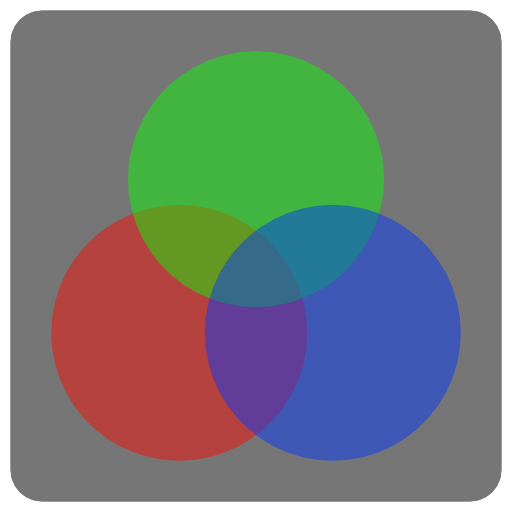
### ADDITIVE
```lua
ADDITIVE
```
Additive blend mode
additive blend mode constant
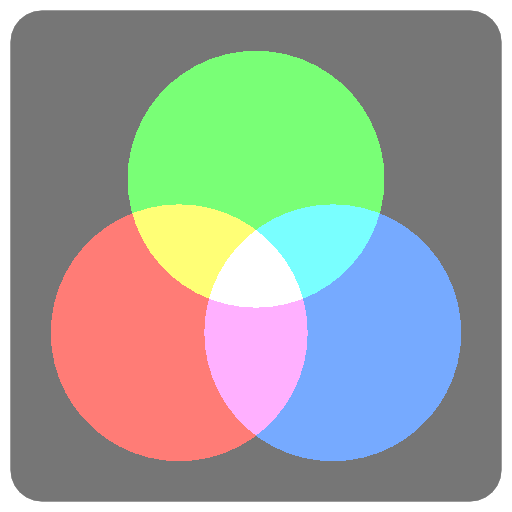
### MULTIPLY
```lua
MULTIPLY
```
Multiply blend mode
multiply blend mode constant
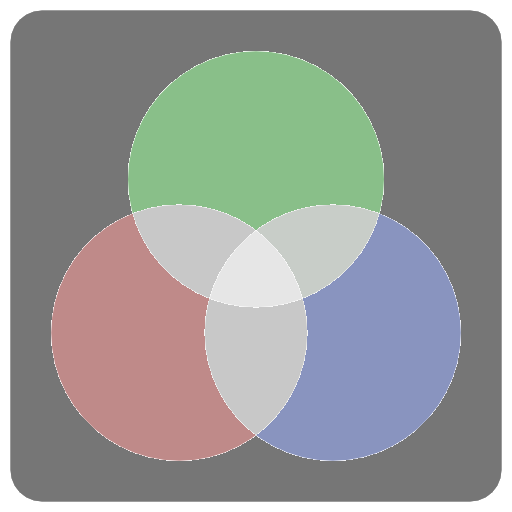
### SCREEN
```lua
SCREEN
```
Screen blend mode
screen blend mode constant
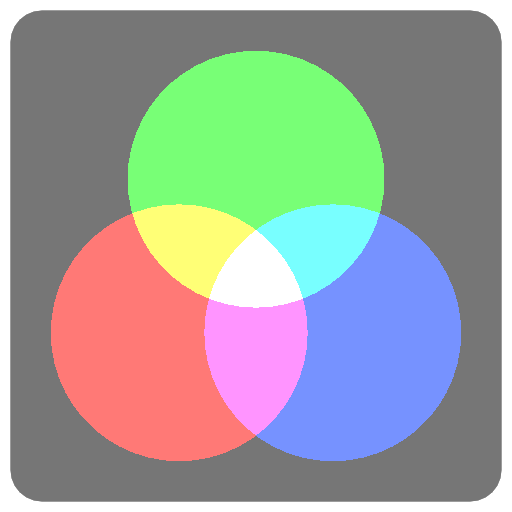
### LIGHTEN
```lua
LIGHTEN
```
Lighten blend mode
lighten blend mode constant
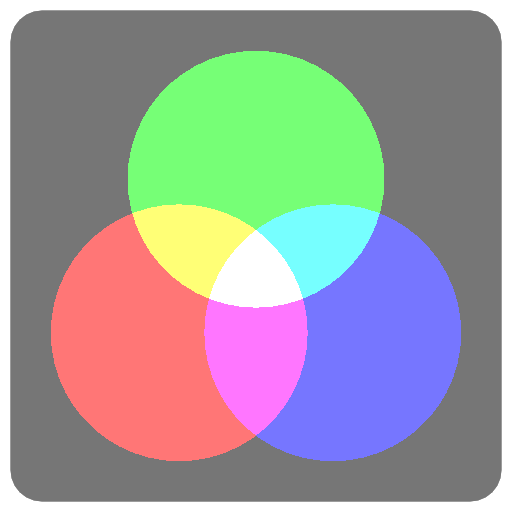
### LINEAR_BURN
```lua
LINEAR_BURN
```
Linear burn blend mode
linear burn blend mode constant
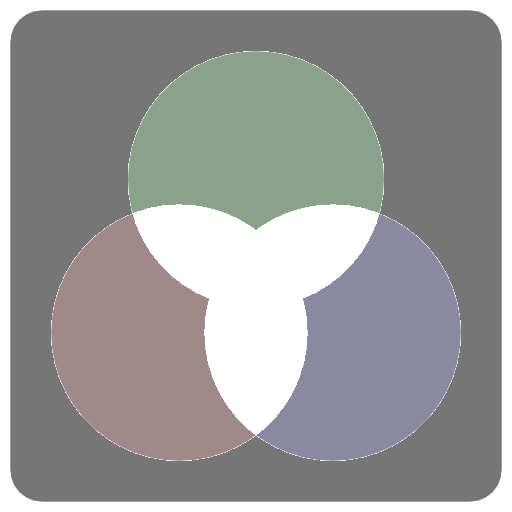
### PREMULTIPLIED
```lua
PREMULTIPLIED
```
Premultiplied blend mode
premultiplied blend mode constant
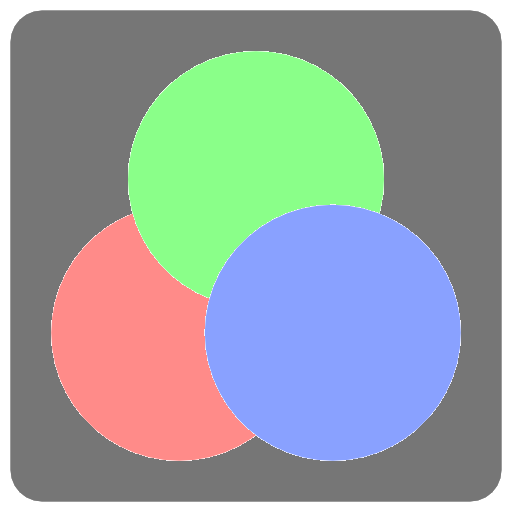
### DISABLED
```lua
DISABLED
```
Disables blending
disabled blend mode constant
## Constants - Blend Functions
### EQUATION_ADD
```lua
EQUATION_ADD
```
Combines source and destination pixels using addition
additive blend equation constant
### EQUATION_SUB
```lua
EQUATION_SUB
```
Combines source and destination pixels using subtraction
subtractive blend equation constant
### EQUATION_REVSUB
```lua
EQUATION_REVSUB
```
Combines source and destination pixels using subtraction in reverse order
reverse subtractive blend equation constant
### EQUATION_MIN
```lua
EQUATION_MIN
```
Combines source and destination pixels by taking the minimum of each component (ignores blend factors)
minimum blend equation constant
### EQUATION_MAX
```lua
EQUATION_MAX
```
Combines source and destination pixels by taking the maximum of each component (ignores blend factors)
maximum blend equation constant
## Constants - Blend Factors
### ZERO
```lua
ZERO
```
Blend factor of (0, 0, 0, 0)
zero blend factor constant
### ONE
```lua
ONE
```
Blend factor or (1, 1, 1, 1)
one blend factor constant
### SRC_COLOR
```lua
SRC_COLOR
```
Blend factor of (R_s, G_s, B_s, A_s)
source color blend factor constant
### ONE_MINUS_SRC_COLOR
```lua
ONE_MINUS_SRC_COLOR
```
Blend factor of (1-R_s, 1-G_s, 1-B_s, 1-A_s)
one minus source color blend factor constant
### SRC_ALPHA
```lua
SRC_ALPHA
```
Blend factor of (A_s, A_s, A_s, A_s)
source alpha blend factor constant
### ONE_MINUS_SRC_ALPHA
```lua
ONE_MINUS_SRC_ALPHA
```
Blend factor of (1-A_s, 1-A_s, 1-A_s, 1-A_s)
one minus source alpha blend factor constant
### DST_ALPHA
```lua
DST_ALPHA
```
Blend factor of (A_d, A_d, A_d, A_d)
destination alpha blend factor constant
### ONE_MINUS_DST_ALPHA
```lua
ONE_MINUS_DST_ALPHA
```
Blend factor of (1-A_d, 1-A_d, 1-A_d, 1-A_d)
one minus destination alpha blend factor constant
### DST_COLOR
```lua
DST_COLOR
```
Blend factor of (R_d, G_d, B_d, A_d)
destination color blend factor constant
### SRC_ALPHA_SATURATE
```lua
SRC_ALPHA_SATURATE
```
Blend factor of (f, f, f, 1) where f = min(A_s, 1 - A_d)
source alpha saturate blend factor constant
## Viewport
### style.viewRect(x, y, w, h)
```lua
style.viewRect(x, y, w, h)
```
Sets the viewport of the renderer
set the viewport of the renderer
#### Parameters
- **x** (number): The x position of the viewport
- **y** (number): The y position of the viewport
- **w** (number): The width of the viewport
- **h** (number): The height of the viewport
#### Returns
- **style**: The style table, for chaining.
## Clipping
### style.clip(x, y, w, h)
```lua
style.clip(x, y, w, h)
```
Settings the clipping rectangle, limiting drawing to within the clipping region
*Note: the clipping rectangle is effected by the current matrix transform*
setup a clipping region on the screen
#### Parameters
- **x** (number): Clipping rectangle origin coordinate, in points.
- **y** (number): Clipping rectangle origin coordinate, in points.
- **w** (number): Clipping rectangle width or height, in points.
- **h** (number): Clipping rectangle width or height, in points.
#### Returns
- **style**: The style table, for chaining.
### style.noClip()
```lua
style.noClip()
```
Disables clipping
disable clipping
#### Returns
- **style**: The style table, for chaining.
## Stencil
### style.stencil(state)
```lua
style.stencil(state)
```
Sets the current stencil state for both front and back faces
configure stencil states for front and back faces
#### Parameters
- **state** (table): Stencil settings table with reference, condition, readMask, pass, fail, and zfail fields.
#### Returns
- **style**: The style table, for chaining.
### style.stencil()
```lua
style.stencil()
```
Gets the current stencil state for both front and back faces
get the stencil state for front and back faces
### style.stencil(front, back)
```lua
style.stencil(front, back)
```
Sets the current stencil state for front and back faces separately
configure stencil states for front and back faces
#### Parameters
- **front** (table): Stencil settings table with reference, condition, readMask, pass, fail, and zfail fields.
- **back** (table): Stencil settings table with reference, condition, readMask, pass, fail, and zfail fields.
#### Returns
- **style**: The style table, for chaining.
### Using Stencils
A stencil state is configured using a table with the following properties:
- `reference`
- `condition`
- `readMask`
- `pass`
- `fail`
- `zfail`
**A simple mask effect using stencils**
```lua
function draw()
background(40, 40, 50)
-- When a pixel is drawn write 1 to the stencil buffer
style.stencil
{
reference = 1,
pass = STENCIL_OP_REPLACE
}
-- Use opacity clip to only draw pixels when alpha is greater than .99
style.opacityClip(0.99)
style.blend(DISABLED) -- no blending needed
matrix.push().transform2d(CurrentTouch.x, CurrentTouch.y, 1, 1, time.elapsed * 50)
sprite(asset.builtin.Cargo_Bot.Codea_Icon, 0, 0, 400)
matrix.pop()
style.blend(NORMAL)
style.noOpacityClip()
-- Only draw if stencil is equal to one using the equal test condition
style.stencil
{
reference = 1,
condition = STENCIL_TEST_EQUAL
}
sprite(asset.builtin.SpaceCute.Beetle_Ship, WIDTH/2, HEIGHT/2, 400)
end
```
## Stencil Test
### STENCIL_TEST_LESS
```lua
STENCIL_TEST_LESS
```
less-than stencil test constant
### STENCIL_TEST_LEQUAL
```lua
STENCIL_TEST_LEQUAL
```
less-than-or-equal stencil test constant
### STENCIL_TEST_EQUAL
```lua
STENCIL_TEST_EQUAL
```
equal stencil test constant
### STENCIL_TEST_GEQUAL
```lua
STENCIL_TEST_GEQUAL
```
greater-than-or-equal stencil test constant
### STENCIL_TEST_GREATER
```lua
STENCIL_TEST_GREATER
```
greater-than stencil test constant
### STENCIL_TEST_NOTEQUAL
```lua
STENCIL_TEST_NOTEQUAL
```
not-equal stencil test constant
### STENCIL_TEST_NEVER
```lua
STENCIL_TEST_NEVER
```
never stencil test constant
### STENCIL_TEST_ALWAYS
```lua
STENCIL_TEST_ALWAYS
```
always stencil test constant
## Stencil Operations
### STENCIL_OP_ZERO
```lua
STENCIL_OP_ZERO
```
zero stencil operation constant
### STENCIL_OP_KEEP
```lua
STENCIL_OP_KEEP
```
keep stencil operation constant
### STENCIL_OP_REPLACE
```lua
STENCIL_OP_REPLACE
```
replace stencil operation constant
### STENCIL_OP_INCREMENT_WRAP
```lua
STENCIL_OP_INCREMENT_WRAP
```
increment wrap stencil operation constant
### STENCIL_OP_INCREMENT
```lua
STENCIL_OP_INCREMENT
```
increment stencil operation constant
### STENCIL_OP_DECREMENT_WRAP
```lua
STENCIL_OP_DECREMENT_WRAP
```
decrement wrap stencil operation constant
### STENCIL_OP_DECREMENT
```lua
STENCIL_OP_DECREMENT
```
decrement stencil operation constant
### STENCIL_OP_INVERT
```lua
STENCIL_OP_INVERT
```
invert stencil operation constant
## Text Style
### style.font(name)
```lua
style.font(name)
```
Sets the font by its system font name. For bold or italic text, choose the corresponding font face, such as `Arial-BoldMT`.
set the font for text()
#### Parameters
- **name** (string): A system font name.
#### Returns
- **style**: The style table, for chaining.
### style.font()
```lua
style.font()
```
Gets the current font name.
get the font for text()
#### Returns
- **string**: The current value.
### style.fontSize(size)
```lua
style.fontSize(size)
```
Sets the font size in points. The default is 17.
set the font size for text()
#### Parameters
- **size** (number): The font size in points.
#### Returns
- **style**: The style table, for chaining.
### style.fontSize()
```lua
style.fontSize()
```
Gets the current font size.
get the font size for text()
#### Returns
- **number**: The current value.
### style.textAlign(align)
```lua
style.textAlign(align)
```
Aligns lines within the text block, identically to `textAlign`. Use `shapeMode()` to position the whole block. Combine `LEFT`, `CENTER`, or `RIGHT` with `TOP`, `MIDDLE`, or `BOTTOM` using bitwise OR to align text inside an explicit box. Horizontal-only alignment starts at the top of the box. Without explicit bounds, the block uses its measured size. Call with no arguments to get the current flags. Alignment does not change block positioning or wrapping.
set alignment for text()
#### Parameters
- **align** (integer): The alignment flags.
#### Returns
- **style**: The style table, for chaining.
### style.textAlign()
```lua
style.textAlign()
```
Gets the current text alignment flags.
get alignment for text()
#### Returns
- **integer**: The current value.
### style.textWrapWidth(width)
```lua
style.textWrapWidth(width)
```
Sets the maximum text width before words wrap onto another line. The width is in points and applies to both `text()` and `textSize()` when no explicit width is supplied. Use zero for no wrapping limit. Negative values are treated as zero.
set the maximum text width before wrapping
#### Parameters
- **width** (number): The wrapping width, or zero.
#### Returns
- **number**: The resulting wrapping width.
### style.textWrapWidth()
```lua
style.textWrapWidth()
```
Gets the maximum text width before wrapping, or zero if there is no limit.
get the maximum text width before wrapping
#### Returns
- **number**: The current value.
### style.textOverline(color)
```lua
style.textOverline(color)
```
Sets the overline color for atlas text. A nonzero alpha enables the decoration; alpha zero disables it. The default is transparent.
set the overline color
#### Parameters
- **color** (color or number): A color or grayscale value from 0 to 255.
#### Returns
- **style**: The style table, for chaining.
### style.textOverline()
```lua
style.textOverline()
```
Gets the overline color components.
get the overline color
#### Returns
- **number**: Red, green, blue, and alpha components (0–255).
- **number**:
- **number**:
- **number**:
### style.textUnderline(color)
```lua
style.textUnderline(color)
```
Sets the underline color for atlas text. A nonzero alpha enables the decoration; alpha zero disables it. The default is transparent.
set the underline color
#### Parameters
- **color** (color or number): A color or grayscale value from 0 to 255.
#### Returns
- **style**: The style table, for chaining.
### style.textUnderline()
```lua
style.textUnderline()
```
Gets the underline color components.
get the underline color
#### Returns
- **number**: Red, green, blue, and alpha components (0–255).
- **number**:
- **number**:
- **number**:
### style.textStrikeThrough(color)
```lua
style.textStrikeThrough(color)
```
Sets the strikethrough color for atlas text. A nonzero alpha enables the decoration; alpha zero disables it. The default is transparent.
set the strikethrough color
#### Parameters
- **color** (color or number): A color or grayscale value from 0 to 255.
#### Returns
- **style**: The style table, for chaining.
### style.textStrikeThrough()
```lua
style.textStrikeThrough()
```
Gets the strikethrough color components.
get the strikethrough color
#### Returns
- **number**: Red, green, blue, and alpha components (0–255).
- **number**:
- **number**:
- **number**:
### style.textBackground(color)
```lua
style.textBackground(color)
```
Sets the background color for atlas text. A nonzero alpha enables the decoration; alpha zero disables it. The default is transparent.
set the text background color
#### Parameters
- **color** (color or number): A color or grayscale value from 0 to 255.
#### Returns
- **style**: The style table, for chaining.
### style.textBackground()
```lua
style.textBackground()
```
Gets the text background color components.
get the text background color
#### Returns
- **number**: Red, green, blue, and alpha components (0–255).
- **number**:
- **number**:
- **number**:
### style.textShadow(color, offset, radius)
```lua
style.textShadow(color, offset, radius)
```
Adds a shadow behind text to help it stand out from the background.
Set the color, offset, and radius together. A transparent color disables the
shadow. The default is no shadow. Shadows do not change text measurements.
set text shadow color, offset, and blur radius
#### Parameters
- **color** (color): The shadow color, including opacity.
- **offset** (vec2): The shadow displacement in points. Positive x moves right; positive y moves up.
- **radius** (number): The blur radius in points. Zero gives a sharp shadow; must be non-negative.
#### Returns
- **style**: The style table, for chaining.
#### Example
```lua
style.textShadow(color(0, 0, 0, 160), vec2(2, -2), 4)
```
### style.textShadow()
```lua
style.textShadow()
```
Gets the shadow color, offset, and radius. A disabled shadow returns a
transparent color while retaining its offset and radius.
get text shadow color, offset, and blur radius
#### Returns
- **color**: The color, offset, and radius.
- **vec2**:
- **number**:
### style.noTextShadow()
```lua
style.noTextShadow()
```
Disables the shadow by setting its opacity to zero.
disable the text shadow
#### Returns
- **style**: The style table, for chaining.
### style.textRenderer(renderer)
```lua
style.textRenderer(renderer)
```
Chooses the text features you want to use. Leave the default, `style.native`,
for everyday text and emoji. Choose `style.atlas` for formatting tags,
decorations, or animated letters. Atlas text does not support color emoji.
Set this before drawing and measuring text. Settings reset each frame, so
select atlas inside `draw()` when using it every frame. `style.push()` and
`style.pop()` save and restore the selection. Also available as `textRenderer`.
select native or atlas text rendering
#### Parameters
- **renderer** (enum): style.native or style.atlas.
#### Returns
- **style**: The style table, for chaining.
### style.textRenderer()
```lua
style.textRenderer()
```
Gets the renderer shared by text drawing and measurement. Also available as the
global `textRenderer()` function.
get the current text renderer
#### Returns
- **enum**: style.native or style.atlas.
### style.native
```lua
style.native
```
The default choice for labels, paragraphs, and color emoji. Use
`style.textRenderer(style.native)` to return to it after drawing tagged text.
Tags such as `` appear as ordinary text with this choice.
native text renderer constant
### style.atlas
```lua
style.atlas
```
Choose this for formatting tags, decorations, and animated-letter effects:
`style.textRenderer(style.atlas)`. Tags are interpreted automatically.
Color emoji are not supported.
atlas text renderer constant
## Constants - Text
### LEFT
```lua
LEFT
```
left alignment constant
### CENTER
```lua
CENTER
```
center mode constant
### RIGHT
```lua
RIGHT
```
right alignment constant
### TOP
```lua
TOP
```
top alignment constant
### MIDDLE
```lua
MIDDLE
```
middle alignment constant
### BOTTOM
```lua
BOTTOM
```
bottom alignment constant
### BASELINE
```lua
BASELINE
```
baseline alignment constant
## Constants - Text Styles
### STRETCH
```lua
STRETCH
```
Reserved text alignment flag; stretching is not currently implemented.
reserved text stretch alignment
## Constants - Style
### ROUND
```lua
ROUND
```
round line cap constant
### SQUARE
```lua
SQUARE
```
square line cap constant
### PROJECT
```lua
PROJECT
```
project line cap constant
### MITER
```lua
MITER
```
miter line join constant
### BEVEL
```lua
BEVEL
```
bevel line join constant
## Constants - Render Queues
### BACKGROUND
```lua
BACKGROUND
```
background pass type constant
### OPAQUE
```lua
OPAQUE
```
opaque pass type constant
### TRANSPARENT
```lua
TRANSPARENT
```
transparent pass type constant
### OVERLAY
```lua
OVERLAY
```
overlay pass type constant
## Color Write Masks
### COLOR_MASK_NONE
```lua
COLOR_MASK_NONE
```
no color channels mask constant
### COLOR_MASK_RED
```lua
COLOR_MASK_RED
```
red channel mask constant
### COLOR_MASK_GREEN
```lua
COLOR_MASK_GREEN
```
green channel mask constant
### COLOR_MASK_BLUE
```lua
COLOR_MASK_BLUE
```
blue channel mask constant
### COLOR_MASK_ALPHA
```lua
COLOR_MASK_ALPHA
```
alpha channel mask constant
### COLOR_MASK_RGB
```lua
COLOR_MASK_RGB
```
RGB channels mask constant
### COLOR_MASK_RGBA
```lua
COLOR_MASK_RGBA
```
all color channels mask constant
## Face Culling
### CULL_FACE_NONE
```lua
CULL_FACE_NONE
```
no face culling constant
### CULL_FACE_FRONT
```lua
CULL_FACE_FRONT
```
front face culling constant
### CULL_FACE_BACK
```lua
CULL_FACE_BACK
```
back face culling constant
## Depth Comparisons
### DEPTH_WRITE_ENABLED
```lua
DEPTH_WRITE_ENABLED
```
depth write enabled constant
### DEPTH_WRITE_DISABLED
```lua
DEPTH_WRITE_DISABLED
```
depth write disabled constant
### DEPTH_FUNC_NEVER
```lua
DEPTH_FUNC_NEVER
```
never depth function constant
### DEPTH_FUNC_LESS
```lua
DEPTH_FUNC_LESS
```
less-than depth function constant
### DEPTH_FUNC_EQUAL
```lua
DEPTH_FUNC_EQUAL
```
equal depth function constant
### DEPTH_FUNC_LESS_EQUAL
```lua
DEPTH_FUNC_LESS_EQUAL
```
less-than-or-equal depth function constant
### DEPTH_FUNC_GREATER
```lua
DEPTH_FUNC_GREATER
```
greater-than depth function constant
### DEPTH_FUNC_NOT_EQUAL
```lua
DEPTH_FUNC_NOT_EQUAL
```
not-equal depth function constant
### DEPTH_FUNC_GREATER_EQUAL
```lua
DEPTH_FUNC_GREATER_EQUAL
```
greater-than-or-equal depth function constant
## Color
### color
```lua
color
```
A color used by different parts of the graphics system
create a color
### color()
```lua
color()
```
Creates transparent black, with all four components set to 0.
create a color
#### Returns
- **color**:
### color(gray, alpha)
```lua
color(gray, alpha)
```
Creates a grayscale color. Components use the range 0 to 255.
create a color
#### Parameters
- **gray** (number): Value shared by the red, green, and blue channels.
- **alpha** (number, optional, default: 255): Opacity, from 0 (transparent) to 255 (opaque).
#### Returns
- **color**:
### color(red, green, blue, alpha)
```lua
color(red, green, blue, alpha)
```
Creates a color from red, green, and blue components in the range 0 to 255.
create a color
#### Parameters
- **red** (number): Red component.
- **green** (number): Green component.
- **blue** (number): Blue component.
- **alpha** (number, optional, default: 255): Opacity, from 0 (transparent) to 255 (opaque).
#### Returns
- **color**:
### color.fromHSV(h, s, v)
```lua
color.fromHSV(h, s, v)
```
Creates a new color object from HSV values
create a color from HSV values
#### Parameters
- **h** (number): Hue in degrees, from 0 to 360.
- **s** (number): Saturation or value, from 0 to 1.
- **v** (number): Saturation or value, from 0 to 1.
### color.fromHSV(hsv)
```lua
color.fromHSV(hsv)
```
Creates a color from a vector containing hue in degrees, saturation from
0 to 1, and value from 0 to 1.
create a color from HSV values
#### Parameters
- **hsv** (vec3): Hue, saturation, and value in x, y, and z respectively.
### color.r
```lua
color.r
```
The red component of the color
get or set the red component
### color.g
```lua
color.g
```
The green component of the color
get or set the green component
### color.b
```lua
color.b
```
The blue component of the color
get or set the blue component
### color.a
```lua
color.a
```
The alpha component of the color
get or set the alpha component
### color.linear
```lua
color.linear
```
This color converted to linear space
convert this color to linear space
### color.gamma
```lua
color.gamma
```
This color converted to gamma space
convert this color to gamma space
### color:grayscale()
```lua
color:grayscale()
```
Returns the color converted to grayscale
convert this color to grayscale
### color:hsv()
```lua
color:hsv()
```
Returns the color converted to HSV values
convert this color to HSV values
### color:unpack()
```lua
color:unpack()
```
Returns the color as a tuple of 4 numbers
unpack this color as four numbers
### color.mix(a, b, t)
```lua
color.mix(a, b, t)
```
Linearly interpolates between two colors, performing a * (1-t) + b * t
linearly interpolate between two colors
#### Parameters
- **a** (color): First or second color to interpolate between.
- **b** (color): First or second color to interpolate between.
- **t** (number): Interpolation amount: 0 selects a, 1 selects b.
### color.black
```lua
color.black
```
predefined black color constant
### color.white
```lua
color.white
```
predefined white color constant
### color.clear
```lua
color.clear
```
predefined clear (transparent) color constant
### color.cyan
```lua
color.cyan
```
predefined cyan color constant
### color.gray
```lua
color.gray
```
predefined gray color constant
### color.grey
```lua
color.grey
```
predefined grey color constant
### color.red
```lua
color.red
```
predefined red color constant
### color.green
```lua
color.green
```
predefined green color constant
### color.blue
```lua
color.blue
```
predefined blue color constant
### color.magenta
```lua
color.magenta
```
predefined magenta color constant
### color.yellow
```lua
color.yellow
```
predefined yellow color constant
## Image
### Using Images
Load images once in `setup()` and draw them with `sprite()` each frame.
The same image can texture a mesh or serve as an offscreen drawing target.
Use `image.read(assetKey)` for an existing asset and `image(width, height)`
for an empty target. Pair `context.push(image)` with `context.pop()` when
drawing into an image, then draw that image on screen.
Choose the image format and mipmap settings when creating a target. Mipmaps
help when a texture is viewed at smaller sizes; floating-point formats preserve
values outside the usual color range for lighting and effects. The format and
sampler sections below explain those choices.
**Loading and drawing an image**
```lua
function setup()
-- load an image from a builtin image asset
img = image.read(asset.builtin.Cargo_Bot.Codea_Icon)
end
function draw()
background(64)
sprite(img, WIDTH/2, HEIGHT/2)
end
```
### image
```lua
image
```
create a new blank image
### image(width, height, hasMips, numLayers, format, depthFormat)
```lua
image(width, height, hasMips, numLayers, format, depthFormat)
```
Create a blank 2D image in logical points (default format is rgba8). The backing texture is allocated at the display scale. Use image.pixel() when dimensions must match physical texels, such as a compute simulation grid.
The size is in points, like `WIDTH` and `HEIGHT`, so the image has
as many pixels per point as the screen: `image(100, 100)` is 300 by 300
pixels on a 3x display, and draws sharply at 100 by 100. Use
`image.pixel()` for an image with an exact number of pixels.
create a new blank image
#### Parameters
- **width** (integer): The width of the image in points
- **height** (integer): The height of the image in points
- **hasMips** (boolean, optional, default: false): Enables mipmapping for this image
- **numLayers** (integer, optional, default: 1): The number of layers for this image
- **format** (image format, optional, default: image.rgba8): The image format
- **depthFormat** (depth format, optional, default: none): The image depth format
#### Returns
- **image**:
### image.pixel(width, height, hasMips, numLayers, format, depthFormat)
```lua
image.pixel(width, height, hasMips, numLayers, format, depthFormat)
```
Create a blank 2D image of exactly `width` by `height` pixels,
whatever the display scale. Takes the same parameters as
`image()`. Use it for pixel art, emulator screens and other
images where each pixel matters.
For compute data, use a floating-point format when needed and dispatch
using the image dimensions and shader workgroup size.
create a new blank image in pixels
#### Parameters
- **width** (integer): The width of the image in pixels
- **height** (integer): The height of the image in pixels
- **hasMips** (boolean, optional, default: false): Enables mipmapping for this image
- **numLayers** (integer, optional, default: 1): The number of layers for this image
- **format** (image format, optional, default: image.rgba8): The image format
- **depthFormat** (depth format, optional, default: none): The image depth format
#### Returns
- **image**:
#### A pixel-exact screen
```lua
function setup()
-- 160 by 144 pixels on every device
screen = image.pixel(160, 144)
screen.filter = image.filter.point
end
function draw()
background(0)
sprite(screen, WIDTH/2, HEIGHT/2, 160 * 2, 144 * 2)
end
```
#### Example
```lua
state = image.pixel(256, 192, false, 1, image.rgba32f)
simulation:setImage("imageOut", state)
local wx, wy = simulation:workgroupSize()
simulation:dispatch(math.ceil(state.width / wx), math.ceil(state.height / wy), 1)
```
### image.cube(size)
```lua
image.cube(size)
```
Create a blank cube image (6 faces with equal sized dimensions)
create a cube image from dimensions or source images
#### Parameters
- **size** (integer): The size of the image cube
### image.cube(equirect)
```lua
image.cube(equirect)
```
Creates a cube image from a single equirect image (i.e. hdr)
create a cube image from dimensions or source images
#### Parameters
- **equirect** (image): The source equirect image
### image.cube(imageNX, imagePX, imageNY, imagePY, imageNZ, imagePZ)
```lua
image.cube(imageNX, imagePX, imageNY, imagePY, imageNZ, imagePZ)
```
Creates a cube image from six source images, one for each cube face
create a cube image from dimensions or source images
#### Parameters
- **imageNX** (image): Image for the N X cube face.
- **imagePX** (image): Image for the P X cube face.
- **imageNY** (image): Image for the N Y cube face.
- **imagePY** (image): Image for the P Y cube face.
- **imageNZ** (image): Image for the N Z cube face.
- **imagePZ** (image): Image for the P Z cube face.
### image.volume(width, height, depth, format)
```lua
image.volume(width, height, depth, format)
```
Creates a blank volume image with the given dimensions
create a blank volume image
#### Parameters
- **width** (integer): The width of the volume image
- **height** (integer): The height of the volume image
- **depth** (integer): The depth of the volume image
- **format** (image format): The format of the volume image
### image.read(key)
```lua
image.read(key)
```
Read an image asset from the filesystem
read an image asset from the filesystem
#### Parameters
- **key** (asset.key): The asset key to load
#### Returns
- **image**:
### image.save(key, image)
```lua
image.save(key, image)
```
Save an image asset to the filesystem
save an image asset to the filesystem
#### Parameters
- **key** (assetKey): The asset key to save the image to
- **image** (image): The image to save
### image.dfg()
```lua
image.dfg()
```
Creates a copy of the 64 by 64 lookup image (`rgba16f`) that Codea’s
physically based lighting uses for image based lighting, for use in your
own shaders
create the lighting lookup image
#### Returns
- **image**:
### image.symbol(name, ...)
```lua
image.symbol(name, ...)
```
Create an image from an SF Symbol. Returns `nil` if no symbol of that
name exists.
A monochrome symbol is rendered **white**, so it can be recoloured at draw
time with [`tint()`](#tint). Pass a colour to bake one in instead. Symbols
drawn with `image.symbol.multicolor`, `image.symbol.hierarchical` or
`image.symbol.palette` carry their own colours — draw those with
`tint(255)`, since `tint` multiplies.
Options may be given in any order after the name. A flag is passed as-is
(`image.symbol.multicolor`, `image.symbol.weight.bold`); an option that
carries values is called with them (`image.symbol.variable(0.5)`). A bare
number is the point size, and a colour tints a monochrome symbol.
create an image from an SF Symbol
#### Parameters
- **name** (string): The SF Symbol name, e.g. "globe" or "cloud.sun.fill"
- **...** (number or color or userdata): Point size, tint color, and image.symbol option values; see the supported options below.
#### Returns
- **image or nil**:
#### Using SF Symbols
```lua
function setup()
-- white by default, so tint() works
globe = image.symbol("globe")
-- or bake a colour in
warning = image.symbol("exclamationmark.triangle.fill", color(255, 200, 0))
-- the symbol's own colours
weather = image.symbol("cloud.sun.fill", image.symbol.multicolor)
-- a fill level from 0 to 1
signal = image.symbol("wifi", image.symbol.variable(0.66))
-- larger and heavier
gauge = image.symbol("gauge", image.symbol.weight.bold, 64)
end
function draw()
background(40)
tint(255, 0, 0)
sprite(globe, WIDTH/2, HEIGHT/2)
tint(255) -- do not tint a multicolour symbol
sprite(weather, WIDTH/2, HEIGHT/2 - 100)
end
```
### image.symbol
```lua
image.symbol
```
A table containing the rendering modes for `image.symbol()`, and the
`weight` and `scale` sub-tables below. Options may be passed in any order
after the symbol name.
Flags, passed as-is:
- `monochrome` - A single colour (the default), rendered white so it can be recoloured with [`tint()`](#tint)
- `multicolor` - The symbol’s own intrinsic colours
Options that carry values, called with them:
- `hierarchical(color)` - One colour applied at several opacities, preserving the symbol’s depth
- `palette(color, ...)` - Two or three explicit colours, applied in order
- `variable(value)` - A fill level from 0 to 1, for symbols that support variable rendering such as `wifi`, `speaker.wave.3.fill` and `battery.100`. Symbols without it ignore the value.
symbol rendering modes
### image.symbol.weight
```lua
image.symbol.weight
```
A table containing the stroke weights for `image.symbol()`:
- `ultralight`
- `thin`
- `light`
- `regular`
- `medium`
- `semibold`
- `bold`
- `heavy`
- `black`
symbol stroke weights
### image.symbol.scale
```lua
image.symbol.scale
```
A table containing the symbol scales for `image.symbol()`:
- `small`
- `medium`
- `large`
symbol scales
### image.width
```lua
image.width
```
The logical width of the image in points. For image.pixel(), points and physical texels are identical.
get the logical width of this image
### image.height
```lua
image.height
```
The logical height of the image in points. For image.pixel(), points and physical texels are identical.
get the logical height of this image
### image.depth
```lua
image.depth
```
The depth of the image in pixels (for volume images)
get the depth of this image in pixels
### image.numLayers
```lua
image.numLayers
```
The number of layers in this image
get the number of layers in this image
### image.hasMips
```lua
image.hasMips
```
Whether this image has mip mapping or not
get whether this image has mip mapping
### image.type
```lua
image.type
```
The type of this image:
- `image.type.texture` - a 2D image
- `image.type.cube` - a cube image, created with `image.cube()`
- `image.type.volume` - a volume image, created with `image.volume()`
get the type of this image
### image.numMips
```lua
image.numMips
```
The number of mips this image has
get the number of mips in this image
### image.sampler
```lua
image.sampler
```
The sampler state for this image, which determines how texels are sampled by shaders
get or set the sampler state for this image
### image.smooth
```lua
image.smooth
```
Sets/gets whether this image has linear or nearest filtering
enable or disable smooth filtering
### image.filter
```lua
image.filter
```
How this image is filtered when drawn larger or smaller than its size:
- `image.filter.point` - nearest pixel, for pixel art
- `image.filter.linear` - blends neighbouring pixels
- `image.filter.default` - follows `style.filter`, the default
get or set the filtering of this image
### image.wrap
```lua
image.wrap
```
How this image repeats when a mesh’s texture coordinates go beyond 0 and 1:
- `image.wrap.tile` - repeats the image
- `image.wrap.clamp` - stretches the edge pixels
- `image.wrap.mirror` - repeats the image, flipping every other copy
- `image.wrap.default` - follows `style.wrap`, the default
get or set how this image repeats
#### Tiling an image on a mesh
```lua
function setup()
local checker = image.pixel(2, 2)
checker:setPixel(1, 1, color(255, 0, 0))
checker:setPixel(2, 2, color(255, 0, 0))
checker:setPixel(1, 2, color(255))
checker:setPixel(2, 1, color(255))
checker:apply()
checker.filter = image.filter.point
checker.wrap = image.wrap.tile
floor = mesh()
floor.texture = checker
-- texture coordinates from 0 to 3 show the image 3 times each way
floor:addRect(vec2(WIDTH/2, HEIGHT/2), vec2(300, 300), 0, vec4(0, 0, 3, 3))
end
function draw()
background(40)
floor:draw()
end
```
### image.slice
```lua
image.slice
```
A new `image.slice` covering the whole image, to configure and
draw with `sprite()`
get a slice of this image
### image.key
```lua
image.key
```
The asset key for this image (if it has one)
get the asset key for this image
### image:setPixel(x, y, color)
```lua
image:setPixel(x, y, color)
```
Sets the colour of a pixel. `x` and `y` start at 1, from the bottom
left corner, and are in points like `width` and `height`,
so on an image made with `image()` a point covers several pixels.
Use `image.pixel()` to set each pixel on its own.
The change is made to the image’s copy in memory. Call `apply()`
before drawing the image or saving it.
set the colour of a pixel
#### Parameters
- **x** (integer): The x coordinate, from 1 to width
- **y** (integer): The y coordinate, from 1 to height
- **color** (color): The colour to set
#### Setting pixels
```lua
function setup()
img = image.pixel(4, 4)
img:setPixel(1, 1, color(255, 0, 0)) -- bottom left
img:setPixel(4, 4, 255, 255, 0, 255) -- top right
img:apply()
img.filter = image.filter.point
end
function draw()
background(40)
sprite(img, WIDTH/2, HEIGHT/2, 200, 200)
end
```
### image:setPixel(x, y, r, g, b, a)
```lua
image:setPixel(x, y, r, g, b, a)
```
Sets the colour of a pixel from its red, green, blue and alpha values,
from 0 to 255
set the colour of a pixel from its components
#### Parameters
- **x** (integer): The x coordinate, from 1 to width
- **y** (integer): The y coordinate, from 1 to height
- **r** (number): The red value
- **g** (number): The green value
- **b** (number): The blue value
- **a** (number): The alpha value
### image:getPixel(x, y)
```lua
image:getPixel(x, y)
```
Returns the red, green, blue and alpha values of a pixel, from 0 to 255.
Coordinates are as in `setPixel()`.
This reads the image’s copy in memory, which holds what was set with
`setPixel()`. A blank image reads as all zeros, and so does what
was drawn into the image until `readback()` copies it.
get the colour of a pixel
#### Parameters
- **x** (integer): The x coordinate, from 1 to width
- **y** (integer): The y coordinate, from 1 to height
#### Returns
- **number**: The red, green, blue and alpha values
- **number**:
- **number**:
- **number**:
#### Reading a pixel
```lua
local img = image.pixel(2, 2)
img:setPixel(1, 1, color(255, 128, 0))
local r, g, b, a = img:getPixel(1, 1)
print(r, g, b, a) -- 255.0 128.0 0.0 255.0
```
### image:setValue(x, y, r, g, b, a)
```lua
image:setValue(x, y, r, g, b, a)
```
Sets a pixel from raw values, as the image stores them: 0 to 1 for most
formats, and any value for float formats such as `image.rgba32f`.
Coordinates are as in `setPixel()`. Given a single value, sets
red, green and blue to it, with an alpha of 1
set the raw value of a pixel
#### Parameters
- **x** (integer): The x coordinate, from 1 to width
- **y** (integer): The y coordinate, from 1 to height
- **r** (number): The red value, or the value for red, green and blue
- **g** (number): The green value (optional)
- **b** (number): The blue value (optional)
- **a** (number): The alpha value (optional | default = 1)
### image:getValue(x, y)
```lua
image:getValue(x, y)
```
Returns the raw red, green, blue and alpha values of a pixel, as the
image stores them: 0 to 1 for most formats, and any value for float
formats. Coordinates are as in `setPixel()`
get the raw value of a pixel
#### Parameters
- **x** (integer): The x coordinate, from 1 to width
- **y** (integer): The y coordinate, from 1 to height
#### Returns
- **number**: The red, green, blue and alpha values
- **number**:
- **number**:
- **number**:
### image:setForEach(func)
```lua
image:setForEach(func)
```
Sets every pixel from a function, called with the coordinates of each
pixel, which returns its red, green, blue and alpha values as raw values,
0 to 1 for most formats. The function must return all four. Call
`apply()` afterwards to see the result
set every pixel from a function
#### Parameters
- **func** (function): A function taking x and y and returning r, g, b, a
#### A gradient
```lua
function setup()
gradient = image.pixel(64, 64)
gradient:setForEach(function(x, y)
return x / 64, y / 64, 0, 1
end)
gradient:apply()
end
function draw()
background(40)
sprite(gradient, WIDTH/2, HEIGHT/2, 256, 256)
end
```
### image:apply()
```lua
image:apply()
```
Sends the pixels set with `setPixel()` to the image, so that they
show when it is drawn or saved
apply the pixels set on this image
### image:readback()
```lua
image:readback()
```
Copies what was drawn into the image back to its copy in memory, so that
`getPixel()` can read it. Waits until the copy is done.
Drawing is finished at the end of a frame: read back in a later frame
than the one that drew into the image, and for drawing done in `setup()`,
from the second frame on.
read back the pixels drawn into this image
### image:generateIrradiance(samples)
```lua
image:generateIrradiance(samples)
```
Generates a guassian pyramid of pre-computed irradiance levels, used for image based lighting
generate pre-computed irradiance data
#### Parameters
- **samples** (integer): The number of samples to use (optional | default = 1024)
#### Returns
- **image**: A new image containing the irradiance data
### image:generateIrradiance(target, samples)
```lua
image:generateIrradiance(target, samples)
```
Generates a guassian pyramid of pre-computed irradiance levels, used for image based lighting
generate irradiance data into a target image
#### Parameters
- **target** (image): A target image to store the irradiance data
- **samples** (integer): The number of samples to use (optional | default = 1024)
#### Returns
- **image**: The target image containing the irradiance data
### Image Formats
Here is a list of all currently available image formats
#### Available Image Formats
| Name | Type | Channels | SRGB |
| --- | --- | --- | --- |
| image.a8 | unorm | [8] | No |
| image.r8 | unorm | [8] | Yes |
| image.r8i | sint | [8] | No |
| image.r8u | uint | [8] | No |
| image.r8s | snorm | [8] | No |
| image.r16 | unorm | [16] | Yes |
| image.r16i | sint | [16] | No |
| image.r16u | uint | [16] | No |
| image.r16f | float | [16] | No |
| image.r16s | snorm | [16] | No |
| image.r32i | sint | [32] | No |
| image.r32u | uint | [32] | No |
| image.r32f | float | [32] | No |
| image.rgb8 | unorm | [8,8,8] | Yes |
| image.rgb8i | sint | [8,8,8] | No |
| image.rgb8u | uint | [8,8,8] | No |
| image.rgb8s | snorm | [8,8,8] | No |
| image.rg16 | unorm | [16,16,16] | Yes |
| image.rg16i | sint | [16,16,16] | No |
| image.rg16u | uint | [16,16,16] | No |
| image.rg16f | float | [16,16,16] | No |
| image.rg16s | snorm | [16,16,16] | No |
| image.rg32i | sint | [32,32,32] | No |
| image.rg32u | uint | [32,32,32] | No |
| image.rg32f | float | [32,32,32] | No |
| image.rgb9e5f | float | [9,9,9,+5] | No |
| image.bgra8 | unorm | [8,8,8,8] | Yes |
| image.rgba8 | unorm | [8,8,8,8] | Yes |
| image.rgba8i | sint | [8,8,8,8] | No |
| image.rgba8u | uint | [8,8,8,8] | No |
| image.rgba8u | sint | [8,8,8,8] | No |
| image.rgba8s | snorm | [8,8,8,8] | No |
| image.rgba16 | unorm | [16,16,16,16] | No |
| image.rgba16i | sint | [16,16,16,16] | No |
| image.rgba16u | uint | [16,16,16,16] | No |
| image.rgba16f | float | [16,16,16,16] | No |
| image.rgba16s | snorm | [16,16,16,16] | No |
| image.rgba32i | sint | [32,32,32,32] | No |
| image.rgba32u | uint | [32,32,32,32] | No |
| image.rgba32f | float | [32,32,32,32] | No |
| image.r5g6b5 | n/a | [5,6,5] | No |
| image.rgba4 | n/a | [4,4,4,4] | No |
| image.rgb5a1 | n/a | [5,5,5,1] | No |
| image.rgb10a2 | n/a | [10,10,10,2] | No |
| image.rg11b10f | float | [32,32,32,32] | No |
| image.d16 | uint | [16] | No |
| image.d24 | uint | [24] | n/a |
| image.d24s8 | depth/stencil | [24,8] | n/a |
| image.d32 | uint | [32] | n/a |
| image.d16f | uint | [16] | n/a |
| image.d24f | uint | [24] | n/a |
| image.d32f | float | [32] | n/a |
| image.d0s8 | stencil | [8] | n/a |
### Sampler State / Mipmapping
The sampler state of an image is used to control texel sampling
The `mag` property controls magnification, i.e. when the image texels are larger than 1 pixel in size
The `min` property controls minification, i.e. when the image texels are smaller than 1 pixel in size
The `mip` property controls how mipmapping is handled, `linear` will blend between mip levels linearly, while `point` will map clamp to the nearest mip level and `none` disables mipmapping entirely
## Sampler State / Mipmapping
### samplerState
```lua
samplerState
```
get or set the minification filter mode
### samplerState.min
```lua
samplerState.min
```
The minification filter, can be `point`, `linear` or `none`
get or set the minification filter mode
### samplerState.mag
```lua
samplerState.mag
```
The magnification filter, can be `point`, `linear` or `none`
get or set the magnification filter mode
### samplerState.mip
```lua
samplerState.mip
```
The mip filter, can be `point`, `linear` or `none`
get or set the mip filter mode
### samplerState.u
```lua
samplerState.u
```
The u sampler mode, can be `repeat`, `clamp` or `mirror`
get or set the u sampler wrap mode
### samplerState.v
```lua
samplerState.v
```
The v sampler mode, can be `repeat`, `clamp` or `mirror`
get or set the v sampler wrap mode
### samplerState.w
```lua
samplerState.w
```
The w sampler mode, can be `repeat`, `clamp` or `mirror`
get or set the w sampler wrap mode
## Slices and Atlases
### image.slice
```lua
image.slice
```
A portion of an image that you can draw with `sprite()`. Use slices to keep several sprites in one image.
Create a slice with `image.slice`, then chain commands to rotate, flip, or stretch it. A 9-patch slice lets a button or panel stretch while keeping its corners the same size.
set the slice name
#### Creating slices
```lua
function setup()
button = image.read(asset.builtin.UI.Grey_Button_10)
-- create a stretchable 9-patch of the original image
buttonSlice = button.slice:patch(10)
end
function draw()
sprite(buttonSlice, WIDTH/2, HEIGHT/2, 100, 50)
end
```
### image.slice:name(name)
```lua
image.slice:name(name)
```
set the slice name
#### Parameters
- **name** (string): Name used to look up the slice in its atlas.
### image.slice:name()
```lua
image.slice:name()
```
Gets/sets the slice name (for retrieval in the `atlas` class)
get the slice name
### image.slice:normal()
```lua
image.slice:normal()
```
Reset the slice to the normal drawing mode (from patch or polygon mode)
reset the slice to normal drawing mode
### image.slice:rect(x, y, w, h)
```lua
image.slice:rect(x, y, w, h)
```
set the slice sub-rectangle
#### Parameters
- **x** (number): Slice rectangle or anchor coordinate; rectangle values are in image pixels and anchor values are normalized.
- **y** (number): Slice rectangle or anchor coordinate; rectangle values are in image pixels and anchor values are normalized.
- **w** (number): Slice rectangle or anchor coordinate; rectangle values are in image pixels and anchor values are normalized.
- **h** (number): Slice rectangle or anchor coordinate; rectangle values are in image pixels and anchor values are normalized.
### image.slice:rect()
```lua
image.slice:rect()
```
Set/gets the sub-rectangle for the slice (in pixels). Use this to draw a portion of the sliced image
get the slice sub-rectangle
### image.slice:patch(left, right, top, bottom)
```lua
image.slice:patch(left, right, top, bottom)
```
set the slice as a 9-patch with margins
#### Parameters
- **left** (number): Inset from the corresponding edge, in pixels.
- **right** (number): Inset from the corresponding edge, in pixels.
- **top** (number): Inset from the corresponding edge, in pixels.
- **bottom** (number): Inset from the corresponding edge, in pixels.
### image.slice:patch(margin)
```lua
image.slice:patch(margin)
```
Sets the slice to draw as a 9-patch using the supplied margins. This allows the slice to be stretched to an arbitrary size while maintaining fixed-sized borders
set the slice as a 9-patch with a uniform margin
#### Parameters
- **margin** (number): Inset from the corresponding edge, in pixels.
### image.slice:padding(left, right, top, bottom)
```lua
image.slice:padding(left, right, top, bottom)
```
set the slice padding
#### Parameters
- **left** (number): Inset from the corresponding edge, in pixels.
- **right** (number): Inset from the corresponding edge, in pixels.
- **top** (number): Inset from the corresponding edge, in pixels.
- **bottom** (number): Inset from the corresponding edge, in pixels.
### image.slice:padding(amount)
```lua
image.slice:padding(amount)
```
set the slice padding uniformly
#### Parameters
- **amount** (number): Inset from the corresponding edge, in pixels.
### image.slice:padding()
```lua
image.slice:padding()
```
Sets/gets the slice padding. This allows for a larger slice to be drawn but discards empty space at the edges (useful sprites packed into an atlas that trims empty space)
get the slice padding
### image.slice:anchor(x, y)
```lua
image.slice:anchor(x, y)
```
set the slice anchor
#### Parameters
- **x** (number): Slice rectangle or anchor coordinate; rectangle values are in image pixels and anchor values are normalized.
- **y** (number): Slice rectangle or anchor coordinate; rectangle values are in image pixels and anchor values are normalized.
### image.slice:anchor()
```lua
image.slice:anchor()
```
Sets/gets the slice anchor (also known as a pivot). The anchor is the geometric center of the slice for transformations such as rotation/scale and flipping
get the slice anchor
### image.slice:rotate(angle)
```lua
image.slice:rotate(angle)
```
set the slice rotation
#### Parameters
- **angle** (integer): Texture rotation in degrees, in multiples of 90.
### image.slice:rotate()
```lua
image.slice:rotate()
```
Sets/gets the sice rotation (in discrete 90 degree turns). Useful for atlas packed sprites that might be rotated to fit, or when reusing a slice at a different 90 degee angle
get the slice rotation
### image.slice:flip(x, y)
```lua
image.slice:flip(x, y)
```
set the slice horizontal and vertical flip
#### Parameters
- **x** (boolean): Whether to flip the slice along this axis.
- **y** (boolean): Whether to flip the slice along this axis.
### image.slice:flip()
```lua
image.slice:flip()
```
Sets/gets the horizontal and vertical flip for the slice
get the slice flip
### image.slice.image
```lua
image.slice.image
```
The image this slice is derived from
get the source image for this slice
### image.slice.atlas
```lua
image.slice.atlas
```
The atlas this slice is part of
get the atlas this slice is part of
### atlas
```lua
atlas
```
A collection of `image.slice` objects generated from an image
Often 2D game assets will be compiled into a single image (known as an atlas or sprite sheet) for convienience and efficiency. These can be loaded from an external text file or generated using some simple settings
Access an image’s atlas with its `atlas` property, for example
`local sprites = myImage.atlas`. Use `sprites[index]` (starting at 1) or
`sprites["name"]` to retrieve a slice. There is no `atlas(image)` constructor.
read an atlas from an asset key
### atlas.read(assetKey)
```lua
atlas.read(assetKey)
```
read an atlas from an asset key
#### Parameters
- **assetKey** (asset.key): Asset key identifying the atlas file.
### atlas.save(assetKey, atlas)
```lua
atlas.save(assetKey, atlas)
```
save an atlas to an asset key
#### Parameters
- **assetKey** (asset.key): Asset key identifying the atlas file.
- **atlas** (atlas): Atlas to save.
### atlas:clear()
```lua
atlas:clear()
```
clear all slices from this atlas
### atlas:setWithCellSize(cellWidth, cellHeight, padding)
```lua
atlas:setWithCellSize(cellWidth, cellHeight, padding)
```
generate slices using cell size
#### Parameters
- **cellWidth** (integer): Cell width or height in pixels.
- **cellHeight** (integer, optional): Cell width or height in pixels.
- **padding** (integer, optional): Space between adjacent cells, in pixels.
### atlas:setWithCellCount(cellColumns, cellRows, padding)
```lua
atlas:setWithCellCount(cellColumns, cellRows, padding)
```
generate slices using cell count
#### Parameters
- **cellColumns** (integer): Number of columns or rows in the grid.
- **cellRows** (integer, optional): Number of columns or rows in the grid.
- **padding** (integer, optional): Space between adjacent cells, in pixels.
## Fonts
### font
Choose a font with `font("Helvetica")` and set its size with
`fontSize(32)`. Use `font.metrics()` when arranging text along a
shared baseline or aligning text with other elements.
### font.metrics()
```lua
font.metrics()
```
Returns a new table of measurements for the current font, size, and text
renderer. All measurements are in points. Changing the drawing style later
does not change a previously returned table.
Ascent and descent are positive distances above and below the baseline.
Leading is the extra spacing between lines. These describe the font, not
the bounds of a particular string; use `textSize()` to measure a string.
Shadows, outlines, and tags within a string do not affect these measurements.
Native and atlas measurements can differ. Atlas font sizes use whole points.
measure the current font
#### Returns
- **font.private.metrics**: A snapshot of the current font measurements.
#### Example
```lua
font("Helvetica")
fontSize(32)
local metrics = font.metrics()
local baseline = 200
shapeMode(CORNER)
text("Hello", 40, baseline - metrics.descent)
```