# Using Codea
Projects, collections, sharing, storage, tools, and settings
[Reference](index.md)
## Project Browser
### The project browser
The project browser is Codea’s home screen: open a project to edit it, run one to try it, or organize your work into collections. A project contains its Lua code, settings, and any assets stored with it.
## Find your way around
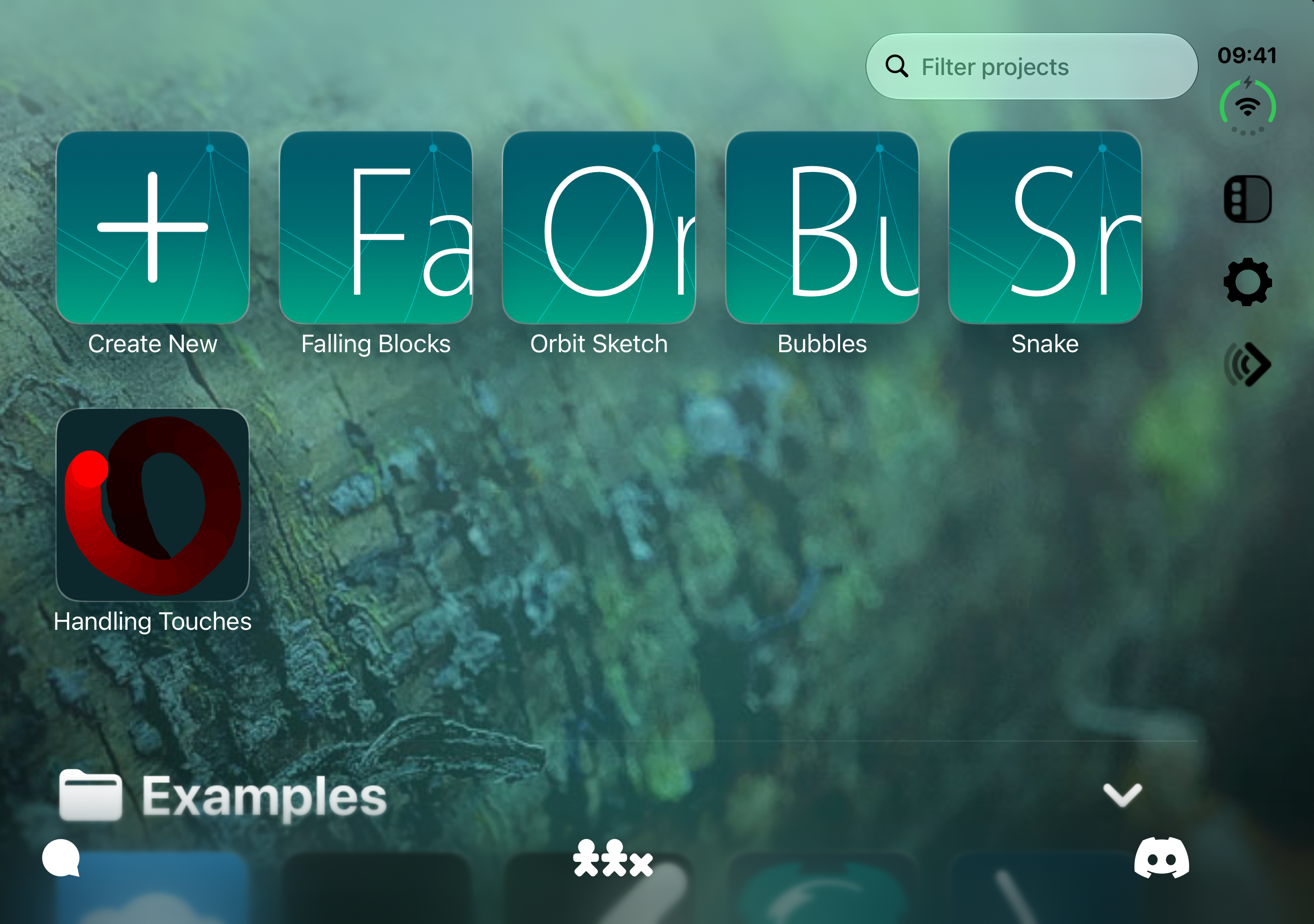
Browse projects in a collection. Control placement adapts to your device and window size.
- **Project grid:** tap a project to open its editor. Touch and hold a project for actions such as **Play**, **Duplicate**, and **Export**. With a mouse or trackpad, use the secondary click.
- **New project:** use the add-project tile in the grid. The creation form lets you choose a name, template, destination, and tint.
- **Left sidebar:** open the tools/collections sidebar to browse **Reference**, **Assets**, **Shader Lab**, and your collections.
- **Settings and Air Code:** use the gear to open Settings and the Air Code control to open its connection menu. Air Code is also available within Settings.
## Start with an example
Open an example to read its code, or choose **Play** from its menu to run it. To experiment without changing the supplied version, choose **Duplicate**, give the copy a useful name, and save it in your own collection. Built-in examples do not offer all of the same actions as your own projects.
Try duplicating a drawing example, changing a color, and running it again. See **How Codea Works** in the **Lua** chapter to learn about `setup()`, `draw()`, and responding to input.
## Finding and organizing work
Use **Filter projects** to find a project by name. Keep related projects in collections and collapse the ones you are not using. Choose **Recent** or **Name** in **Settings > Projects** to sort the grid.
Features marked **Pro** require Codea Pro.
### Creating and customizing projects
Start a new project or duplicate one to build on an existing idea.
## Duplicate a project
Touch and hold a project and choose **Duplicate**. Choose a name and destination for the copy. Duplicate built-in examples before experimenting if you want to keep the originals.
## Rename a project
Touch and hold a project and choose **Rename**. Enter a new name and confirm. To rename a built-in example, duplicate it into your own collection first.
## Set a custom tint
The project form includes a **Tint** color picker next to the icon. Set it while creating or duplicating a project. For an existing project, open **Rename**, leave the name unchanged if you wish, and adjust its tint before confirming.
The tint changes the project icon. Use **Clear Tint** to restore its automatic color, and check the preview before saving.
### Organizing project collections
A collection is a named group of projects. Use collections for lessons, game ideas, reusable libraries, or finished work. Each collection has a Local or iCloud location, shown beside its name in the sidebar.
## Create a collection
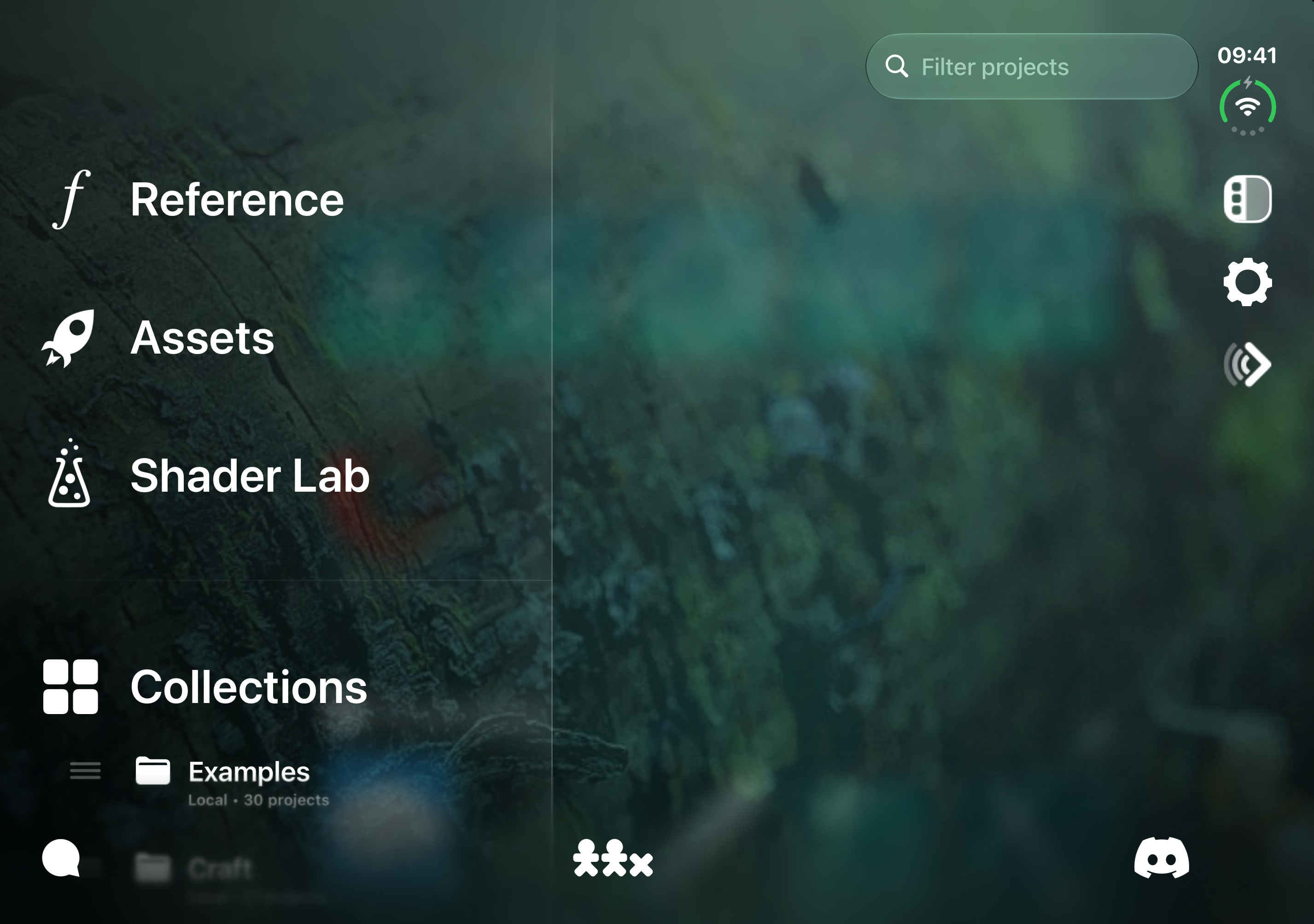
Open the sidebar to find tools and collections. Collection rows show their storage location and project count.
Choose a distinct name in that location. Creating custom collections is a Codea Pro feature.
## Reorder collections
Drag the handle beside a collection in the left sidebar to change its position in the project browser.
## Expand and collapse the grid
Tap a collection’s header in the grid to show or hide its projects.
## Move projects between collections
Touch and hold a project, then drag it to another collection in the grid. If the destination has both Local and iCloud storage, Codea asks which location to use.
Projects within a collection follow the **Recent** or **Name** sorting choice in **Settings > Projects**. Dragging within the same collection is not a manual project-ordering feature.
Deleting a collection also deletes the projects it contains.
## Sharing & Storage
### Sharing and exporting projects
Choose a sharing method based on what the recipient needs: a playable project, editable source, or a standalone app project.
## Share a playable link
Anyone with the link can play your uploaded project on an iOS device. Links expire 30 days after creation or an update.
After changing the project, return to this screen and choose **Update Shared Project…** to publish the latest version at the same link. Local edits do not automatically update the uploaded version.
## Send editable source
Choose **Send Project File…** to share the project document through the system share sheet. **Export > Zipped Project** packages it as an archive. **Export > Copy Code** copies the code as text; use a project file or archive when the recipient also needs its assets.
## Export an Xcode project
Xcode export requires Codea Pro. Build and test the exported app before submitting it to the App Store.
## Export an Android project
Choose **Export > Android Project** where available. This option is marked **Beta** and requires Codea Pro. Complete the export settings, save the archive, then extract it on your computer and open the generated Gradle project in Android Studio.
Test the exported app on Android, especially any platform-specific features.
### Local, iCloud, and collaboration
Keep projects on your device or use iCloud to work on them across devices.
## Choose where to keep a project
**Local** projects live on this device. They remain usable without iCloud and do not automatically appear on your other devices.
**iCloud** projects live in Codea’s iCloud Drive storage. iCloud synchronizes them across devices signed in to the same Apple Account. A project may need to download before it can be opened; its menu can offer **Download Now**. Editing iCloud projects in Codea requires Codea Pro.
Check the collection’s location label or the project’s cloud indicator to see where it is stored.
## Move between locations
Touch and hold a local project and choose **Move to iCloud**, then confirm. For an iCloud project, choose **Move to Device** and confirm. These are moves, not duplicate copies. Duplicate first if you want to keep independent versions in both locations.
Wait for syncing to finish before opening the project on another device. You can also move an iCloud project to your device to edit it without Codea Pro.
## Collaborate through iCloud
Keep the project in iCloud Drive. In **Files**, find it under **iCloud Drive > Codea**, touch and hold it, and choose **Share**. Select **Collaborate** rather than sending a copy, choose who can access it and whether they can make changes, then send the invitation.
Collaborators work on the same project. Coordinate edits to the same Lua file and let iCloud finish syncing between devices. Use the sharing controls in Files to manage participants or stop sharing.
See [Apple’s iCloud sharing guide](https://support.apple.com/guide/ipad/ipade248577c/ipados) for invitation and permission controls. Use a playable link when you want someone to play your project without editing it.
### Accessing projects in Files
Use the Files app to find, back up, and share your Codea projects.
## Find local projects
In **Files**, open **Browse** and choose **On My iPad > Codea** or **On My iPhone > Codea**. Collections appear as folders, and projects have the `.codea` extension, which Files may hide.
## Find iCloud projects
Choose **iCloud Drive > Codea**. If it is missing, check that iCloud Drive is enabled and Codea has access to it. Projects may need to download before opening.
## Work with project documents
Touch and hold a project for actions such as **Copy**, **Move**, **Rename**, **Share**, or **Compress**. Keep the whole `.codea` package together so its code and assets travel with it. Tap a project to open it in Codea; opening external projects can require Codea Pro.
You can also move projects using **Move to Device** and **Move to iCloud** in Codea. Changes made in Files affect the projects you see in Codea.
See [Apple’s Files guide](https://support.apple.com/guide/ipad/ipad4aaf0d7f/ipados) for the current location sidebar and file-management controls.
## Tools & Settings
### Air Code: work from your computer
Air Code lets you edit a project on your computer while it runs on your iPad or iPhone. Use Visual Studio Code for code completion, reference information, and debugging.
## Open Air Code in Codea
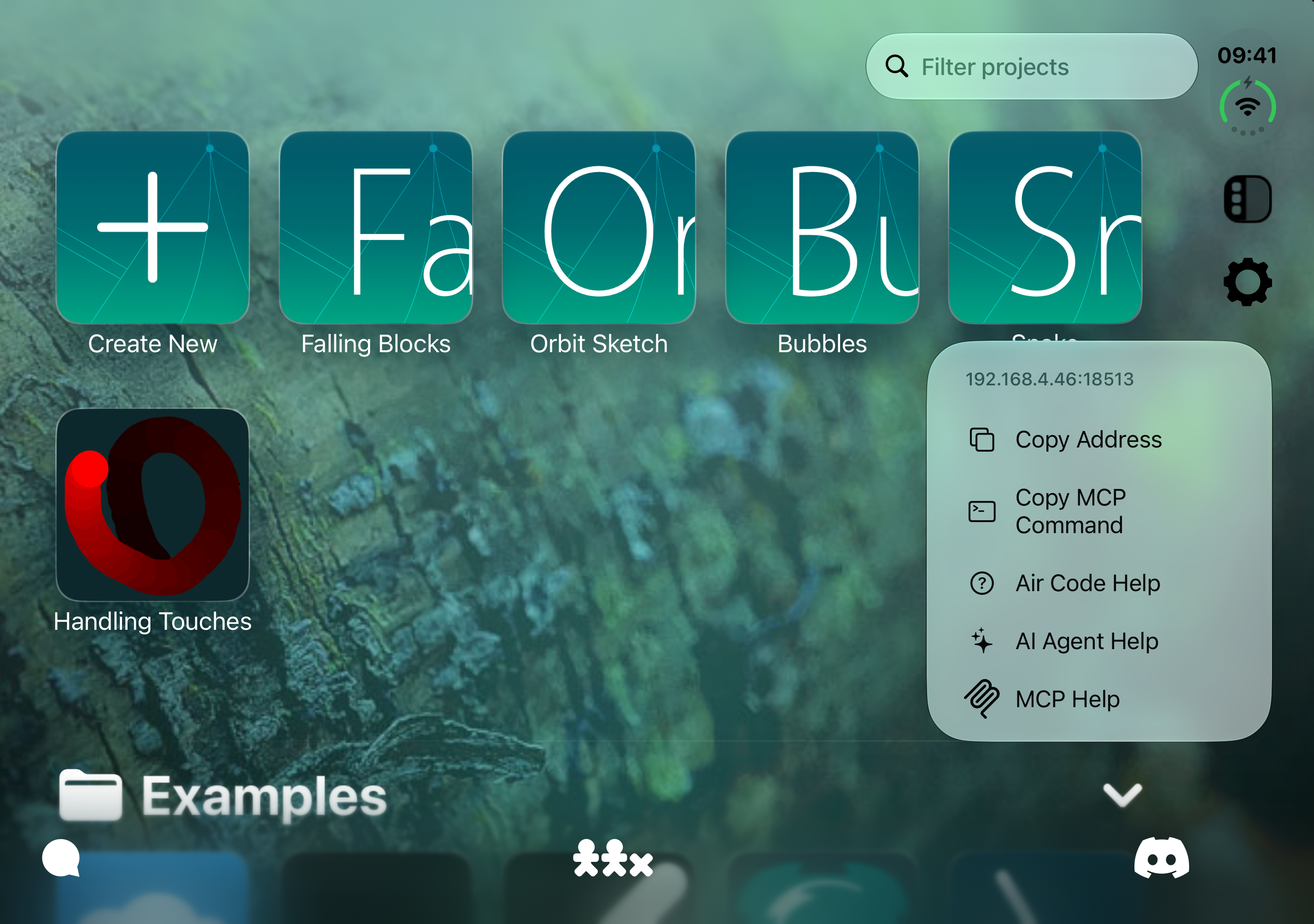
The Air Code menu shows the server address, connection tools, and setup guides for your computer.
Open **Settings > Air Code** and turn on **Enable Air Code**. Use **Copy Address** to copy the server address, or **Setup Guide** for help. The main-screen **Air Code** menu also shows the address and help links. Air Code requires Codea Pro.
## Connect Visual Studio Code
Use the Codea sidebar in VS Code to browse the reference and adjust project parameters. Attach the debugger to set breakpoints and inspect variables. Your edits update the project on the device.
If a device does not appear, check that Air Code is enabled and use the displayed address directly. The **Setup Guide** also covers USB connections when the network is unsuitable.
## Command-line and agent tools
The Air Code settings also include **Install Codea CLI**, **Install Agent Skill**, and **MCP Server** setup. The install buttons copy commands to run on your computer. Use these tools to transfer projects, run them, read logs, and capture screenshots from your terminal or coding agent.
## Further reading
- [Air Code setup and usage](https://twolivesleft.github.io/codea-air-code/) — the VS Code extension’s official documentation.
- [Codea CLI on GitHub](https://github.com/twolivesleft/codea-cli) — installation, connection, project-transfer, and automation workflows.
### Reference, Assets, and Shader Lab
Open the left sidebar to find **Reference**, **Assets**, and **Shader Lab**.
## Reference
Open **Reference** to browse by chapter or search for a function.
Guides explain how to get started; reference entries describe individual functions and properties. Use **Run Example** to try a project and **Controls** to adjust its parameters. **Show code** expands a long sample.
## Assets
Open **Assets** to browse images, sounds, and models. Use the asset picker while writing code to insert an asset key. Keep assets in your project when you want them included as you share or export it.
## Shader Lab
Open **Shader Lab** (Codea Pro) to edit shaders and preview the result. Compiler errors help you find mistakes in the code. See **Shaders & Meshes** for materials, shader builders, and compute examples, and test your shader in the project where you plan to use it.
### Useful settings and backups
Open Settings from the project browser to adjust the editor, organize projects, and make backups.
## Editor
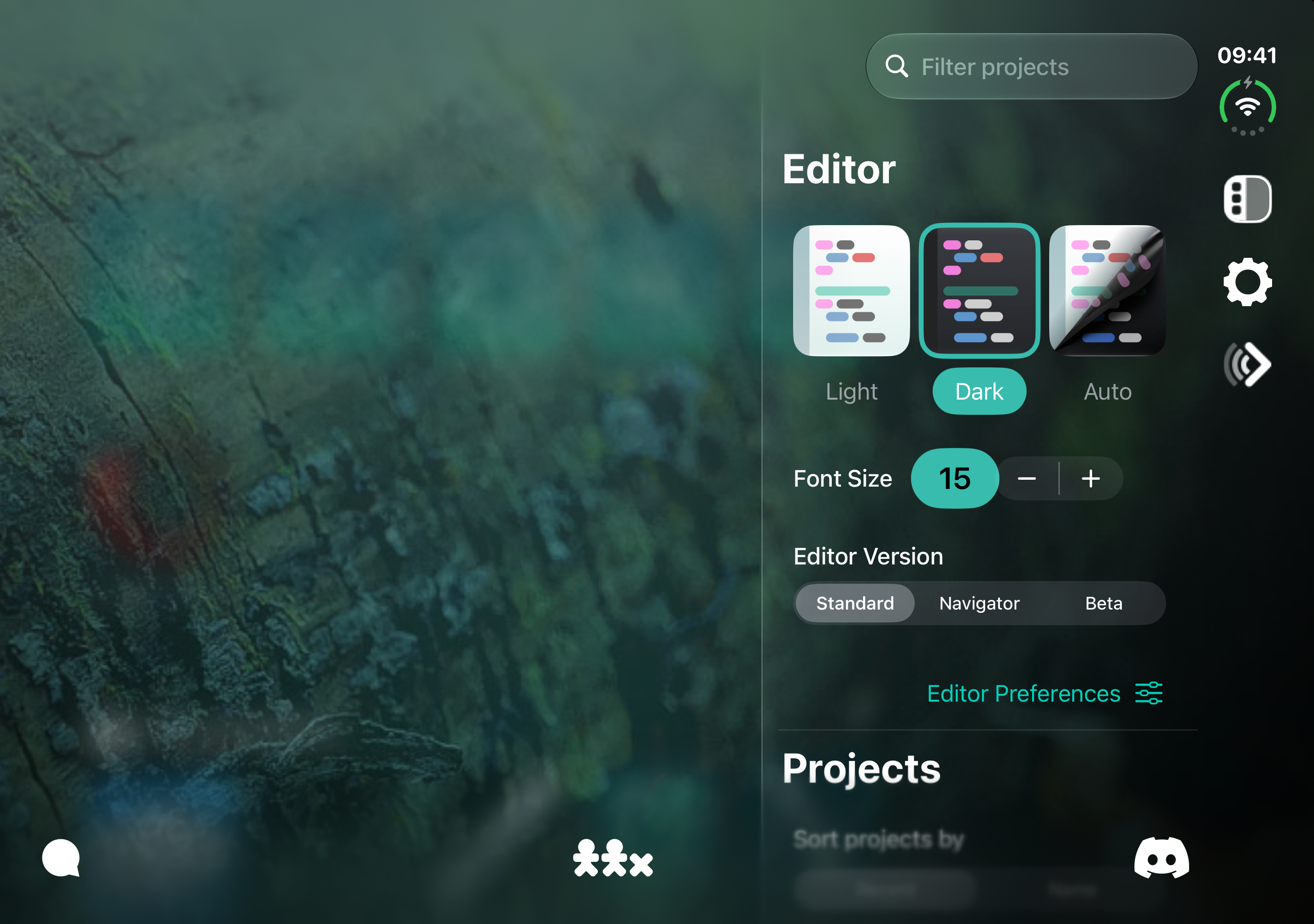
The Editor pane brings reading preferences and editor behavior together.
Choose an editor appearance and font size. Open **Editor Preferences** for line wrapping, formatting on paste, scrolling, autocomplete, and Code Notes. Use **Editor Version**, where available, to choose the editing interface.
## Projects
Sort projects by **Recent** or **Name**, and choose **Small** or **Large** project icons.
**Restore All Examples** replaces the built-in examples with their original versions. Duplicate any edited examples into your own collection first to keep your changes.
**Export All Projects** creates **CodeaProjects.zip** for you to save or share. It includes local projects, excluding built-in examples and some support files. Back up iCloud projects separately through Files or by exporting them.
## Air Code
Enable the remote connection, copy the server address, or open the setup guides for VS Code, the CLI, and MCP clients. See the Air Code page in this chapter for the connection workflow.
## Windowing
Choose **Single Window** to open and run projects in the current window, or **New Window** to use separate windows on supported devices.
## Subscription controls
Use **Manage Subscription** to manage Codea Pro.